
Animated Video
Pick a style from real sample videos and upload your document. The AI writes the script, records the narration and animates the whole video in that style.
On this page
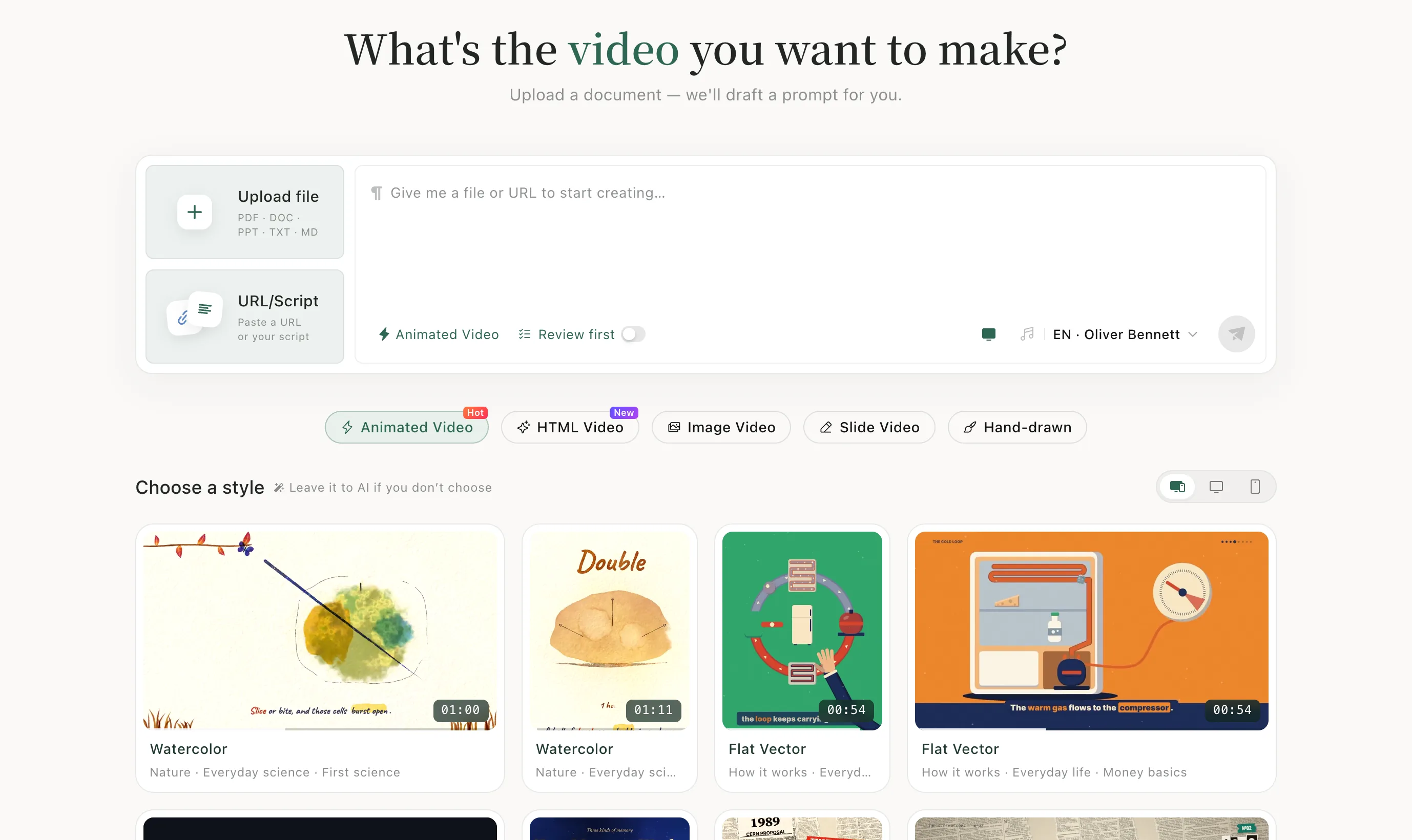
Step 1: Choose Animated Video
On the create page, click Animated Video below the box. It's the first button in the row.
Step 2: Pick a style
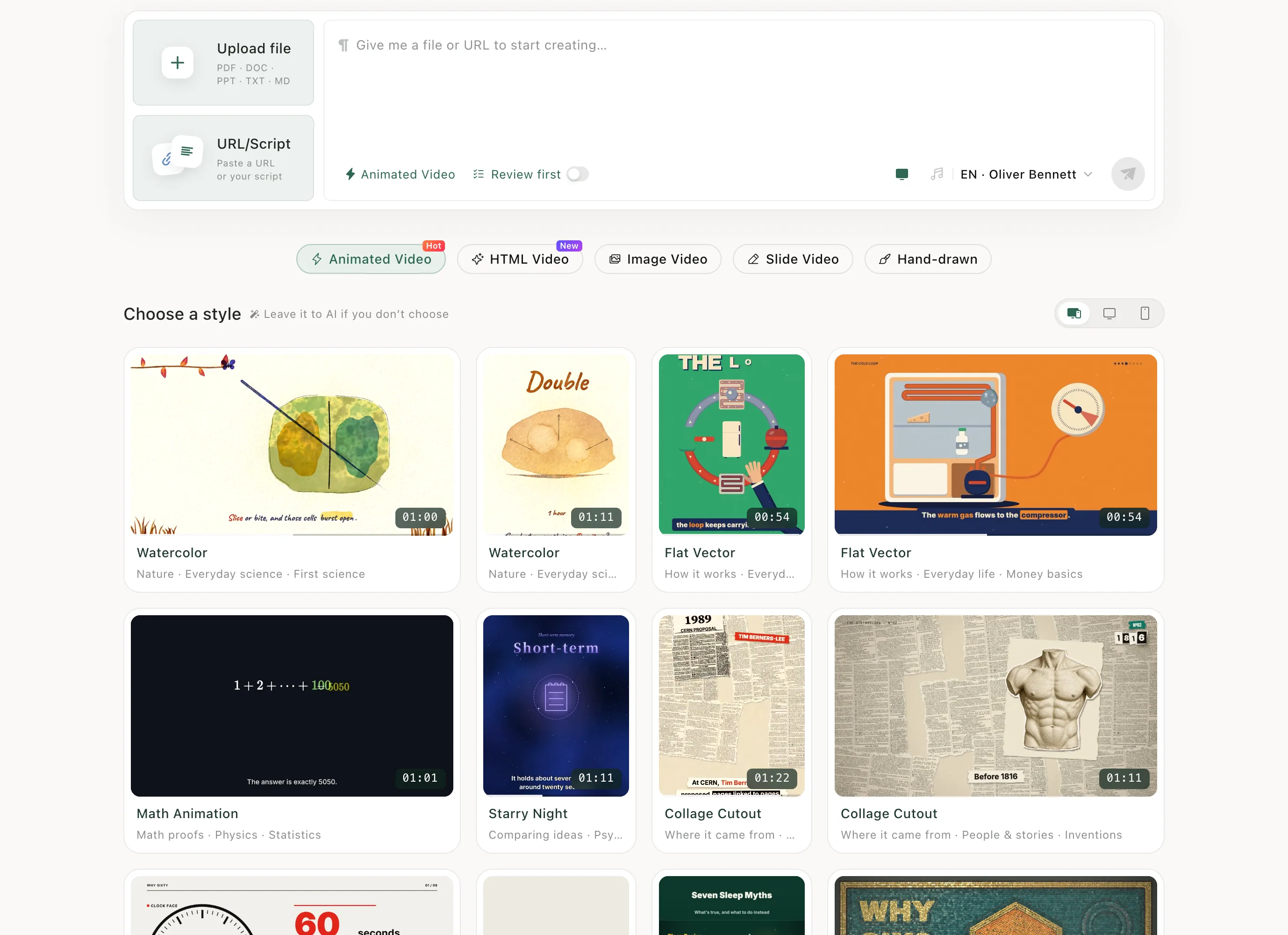
Every card under Choose a style is a real video made in that style. Hover over a card to play a preview, or click Full video to watch the whole thing, then click the card to select it. The three icons on the right show all styles, only landscape (16:9) or only portrait (9:16). If you don't pick one, the AI chooses a style that suits your material.
Step 3: Add your material
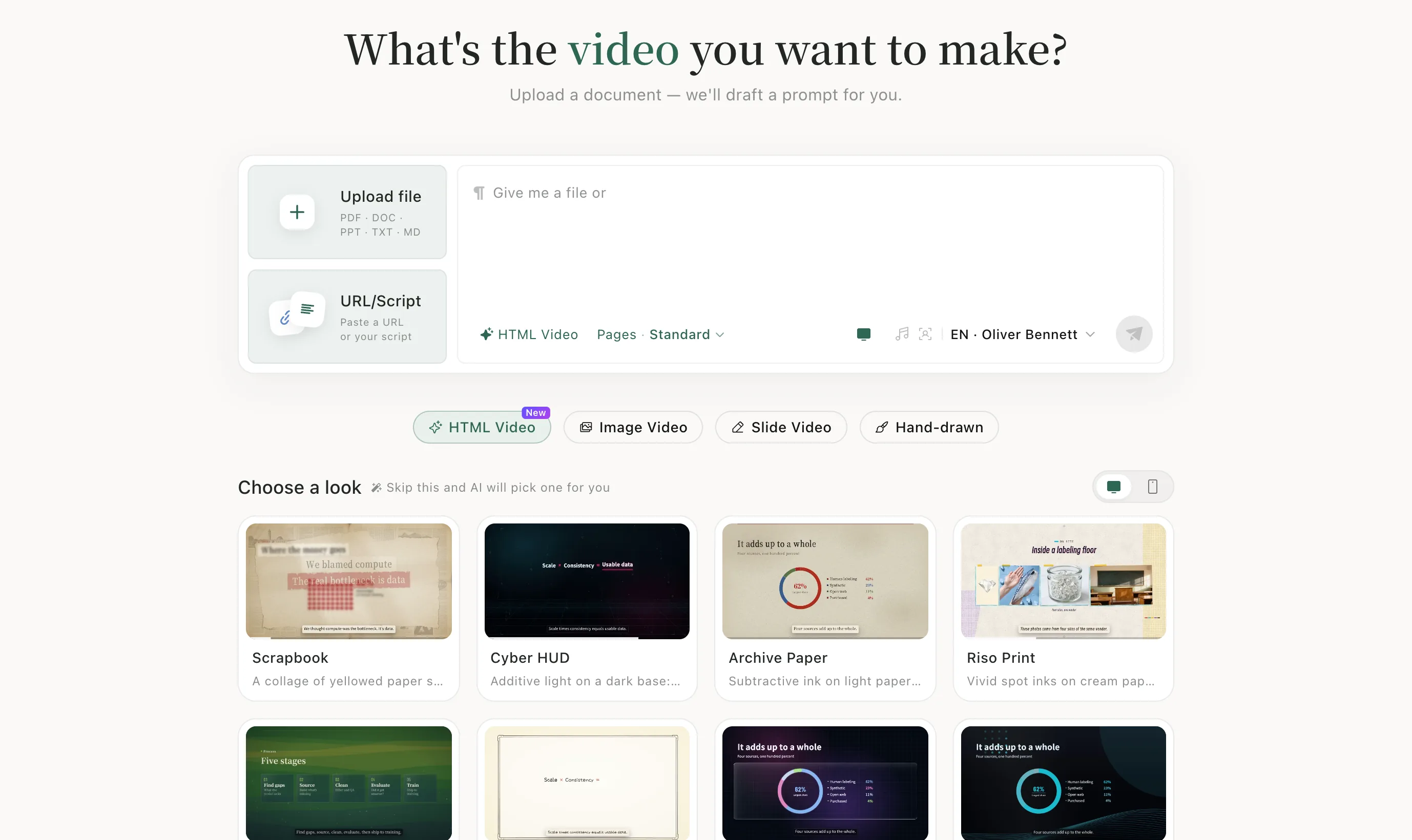
Click Upload file and choose a PDF, Word, PowerPoint, TXT or Markdown file, up to 50 MB. To use a web page or your own script instead, click URL/Script and paste it.
Step 4: Set the length, review and voice, then send
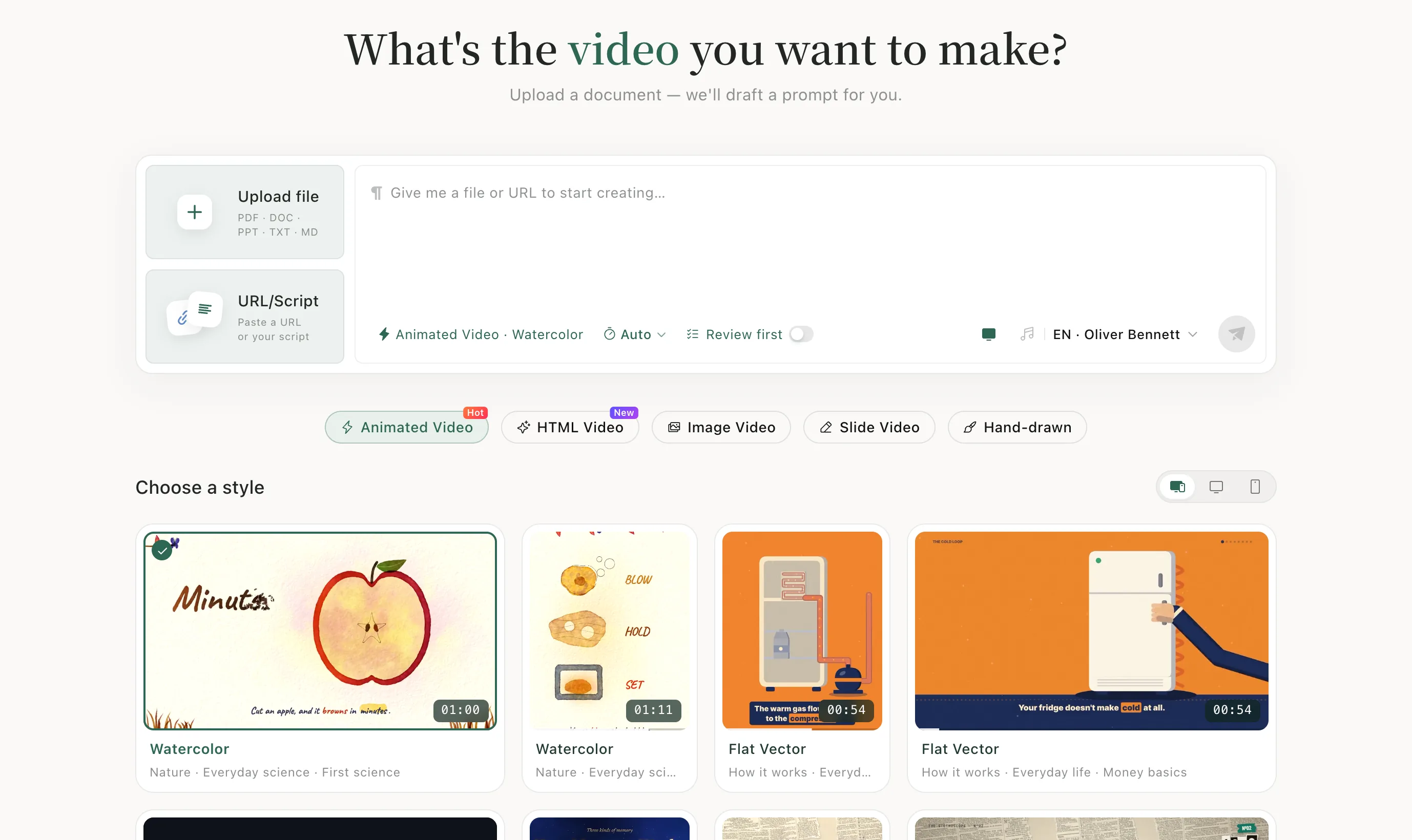
Length starts on Auto, which fits the video to your material. Open it to pick a fixed length instead; every option shows its estimated credits. Turn on Review first to read and edit the script before anything is animated. The button on the right picks the narrator's voice. Each style narrates in certain languages, so choose a voice in one of them. Then click the green send button.
After it's made
With Review first on, the script opens before the animation starts: edit any line, then click Confirm and generate. When the video is ready, click Adjust on the task page to change the colors, caption size, pace, background music, logo or watermark, or describe any other change in the chat. Then download it — see Edit and download.
When to use it
Use Animated Video when you want a finished, designed explainer without planning pages or layouts: a science question, a piece of history, how something works, a concept for a lesson. To keep your own slides as they are, use Slide Video. To lay out your own images and figures, use HTML Video.
All Animated Video styles
Every card is a real video made in that style. Hover to preview; click to start a video in it.
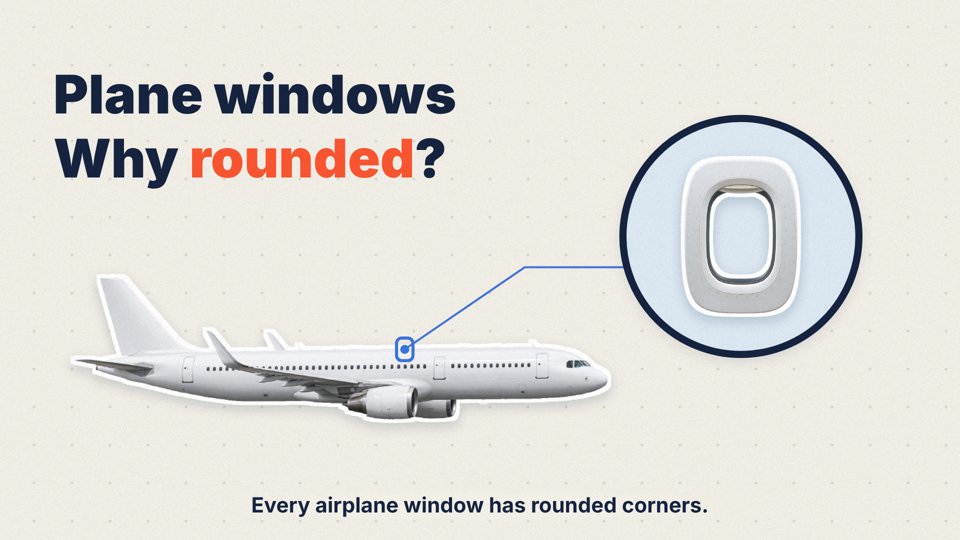 Infographic CanvasScience · Lessons · Product explainersUse this style
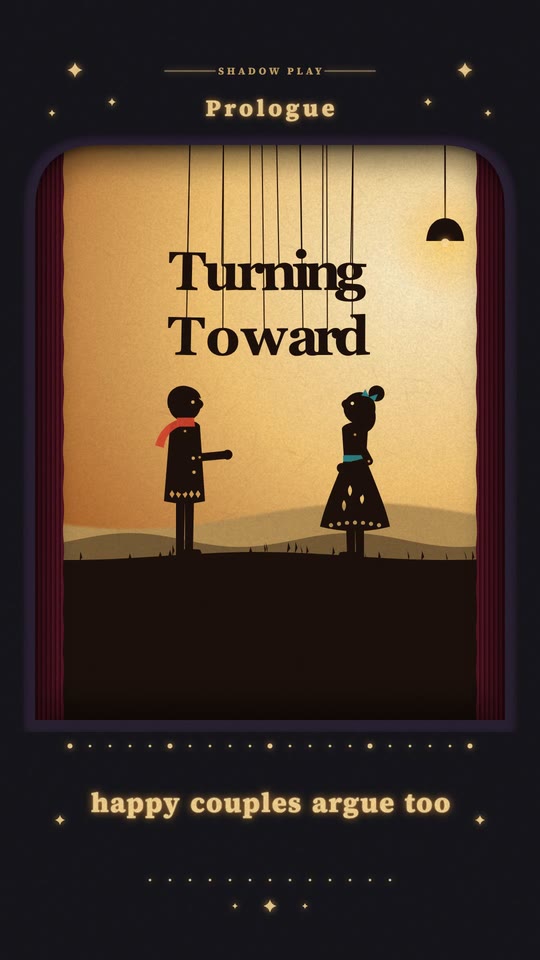 Paper Shadow TheatreHuman stories · Relationships & feelings · ParentingUse this style
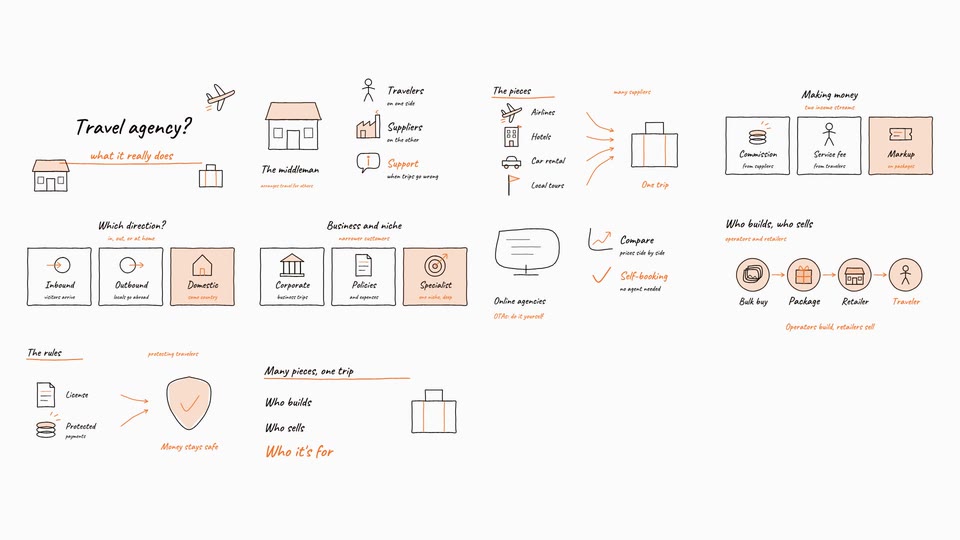 Whiteboard SketchLessons · Explainers · TrainingUse this style
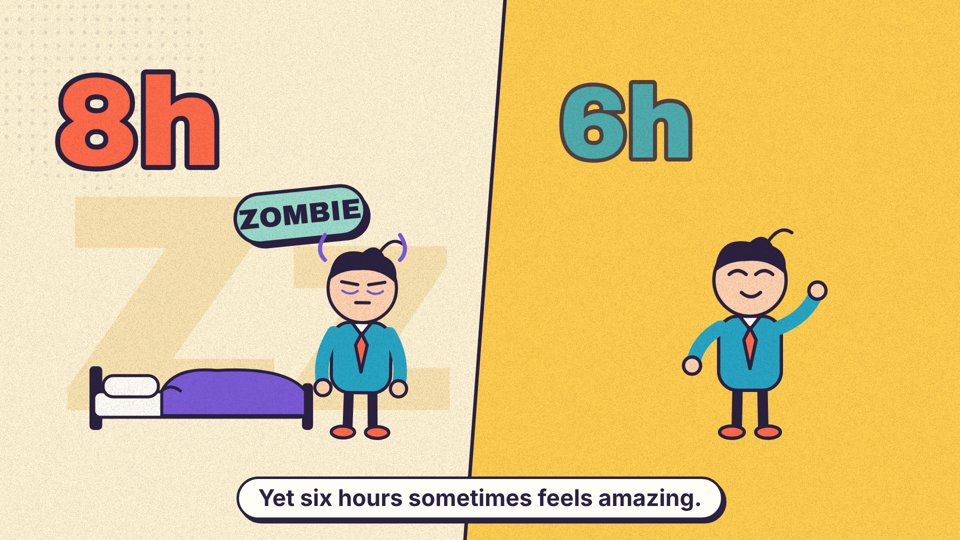 Fun ExplainerEveryday science · Health · Curious questionsUse this style
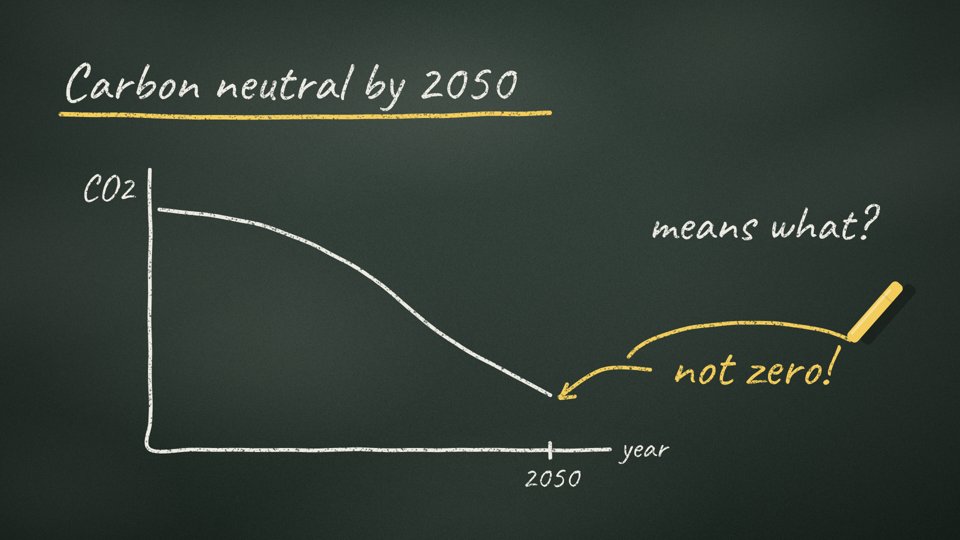 ChalkboardConcepts · Lessons · EnvironmentUse this style
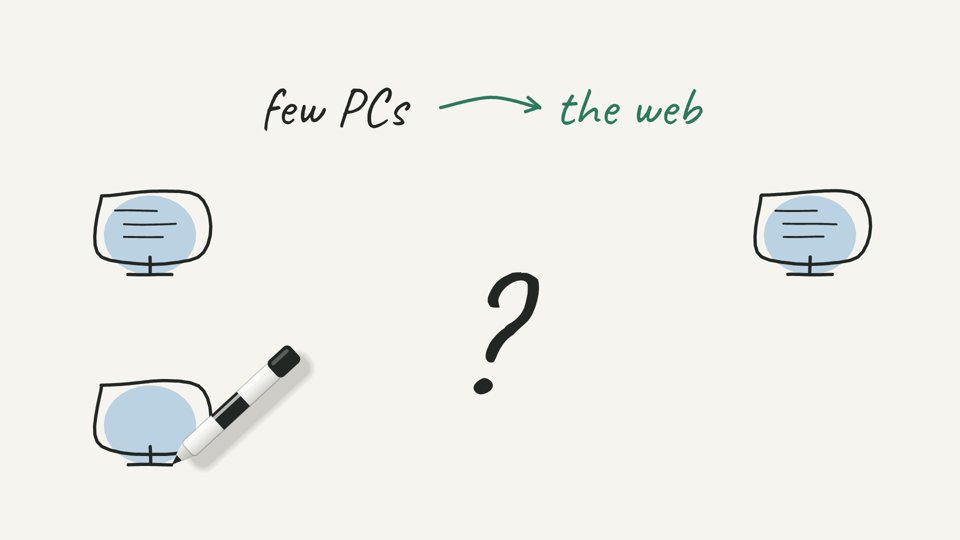 WhiteboardHistory · Course overviews · Knowledge mapsUse this style
 Pixel QuestProcesses · How things evolved · Step by stepUse this style
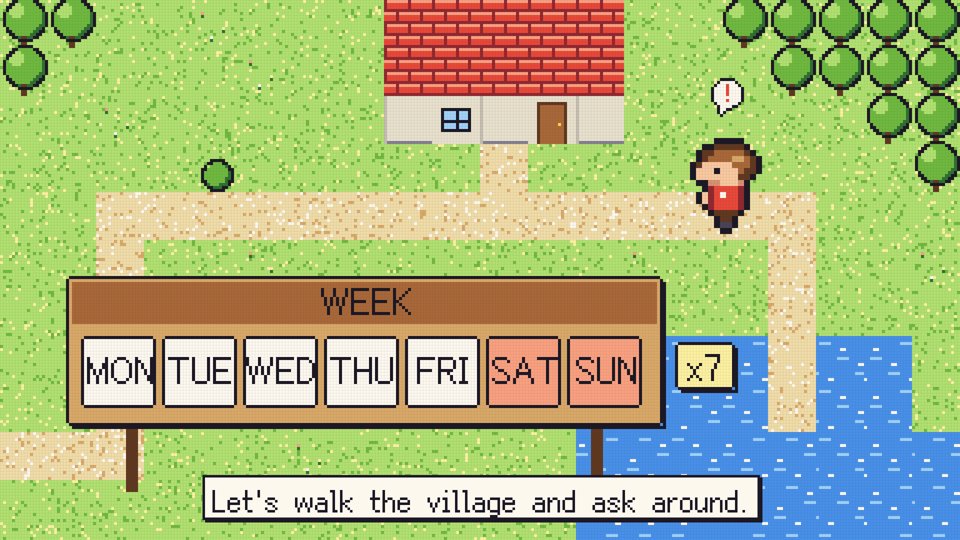 Pixel TaleWhere it came from · Stories · Everyday knowledgeUse this style
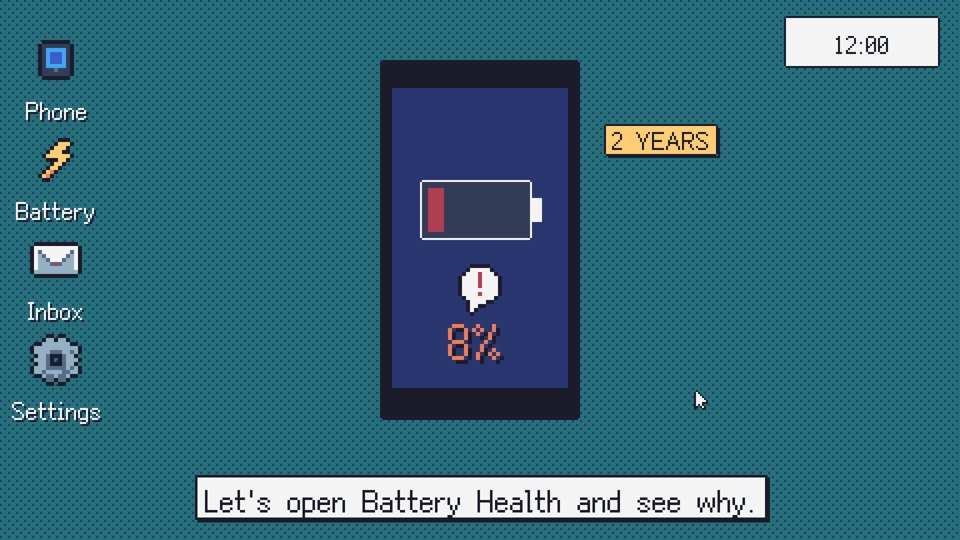 Pixel DesktopData · Tech products · TipsUse this style
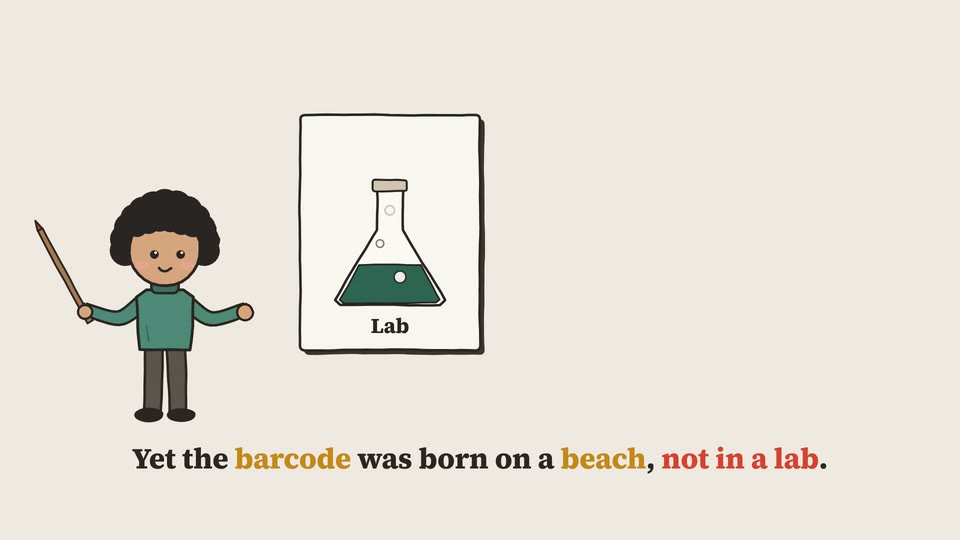 Sketch LectureWhere it came from · How it works · NumbersUse this style
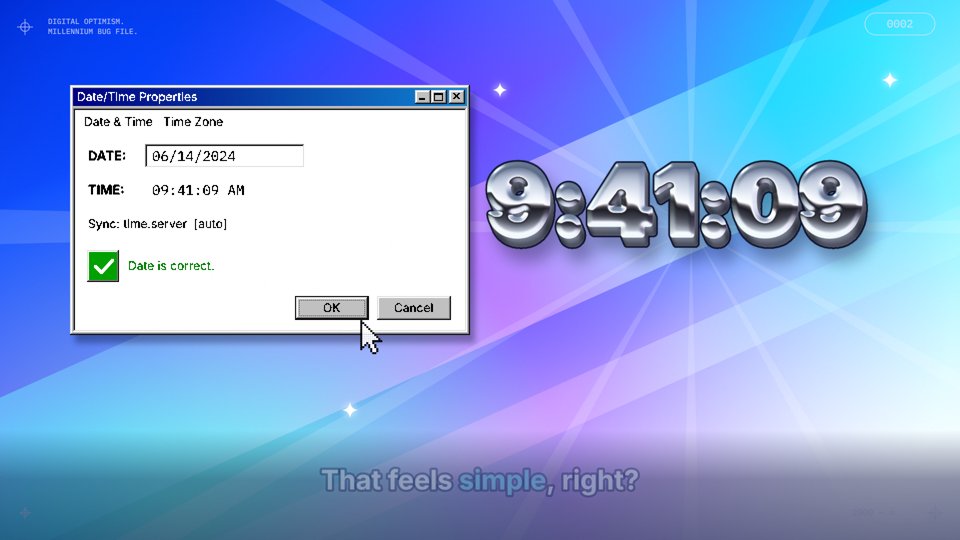 Y2K RetroTech history · Tech products · How it worksUse this style
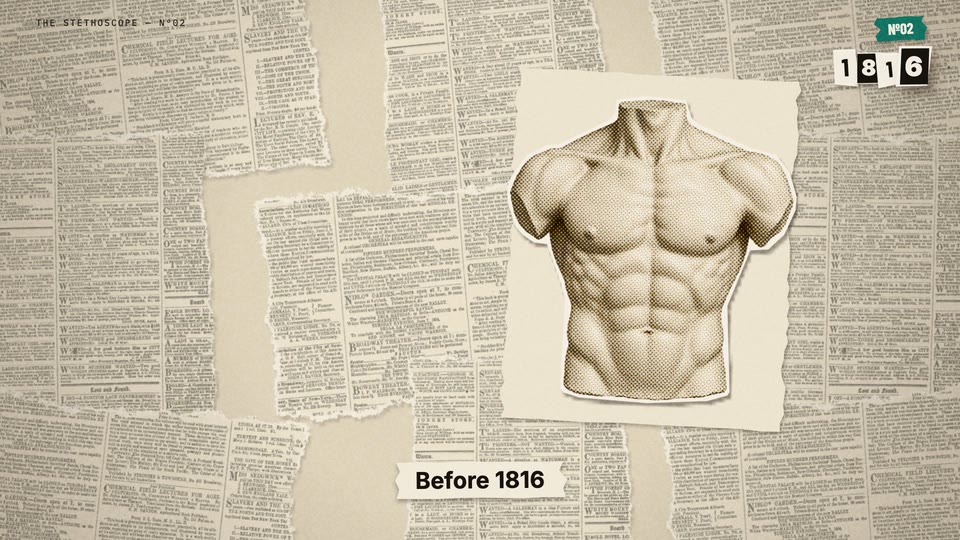 Collage CutoutWhere it came from · People & stories · InventionsUse this style
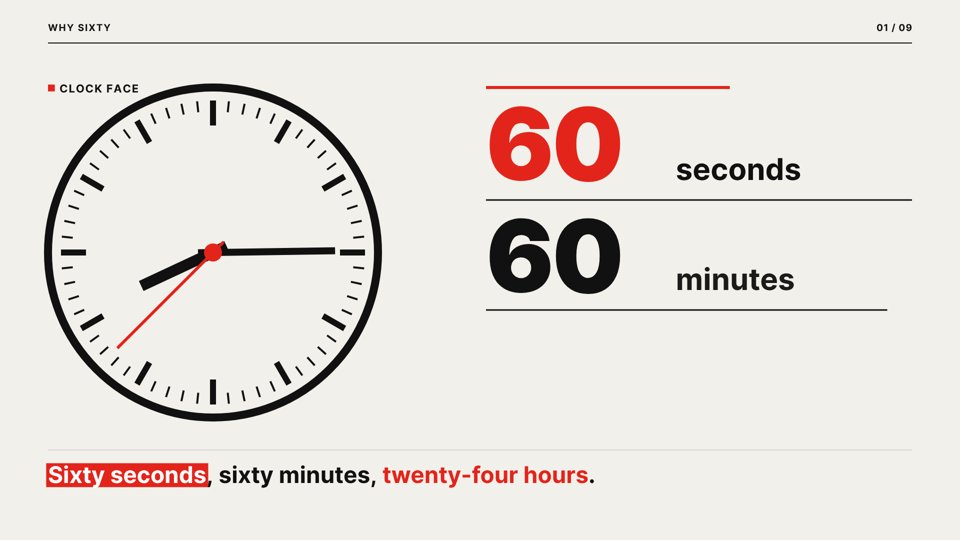 Swiss GridWhere it came from · Numbers · How it worksUse this style
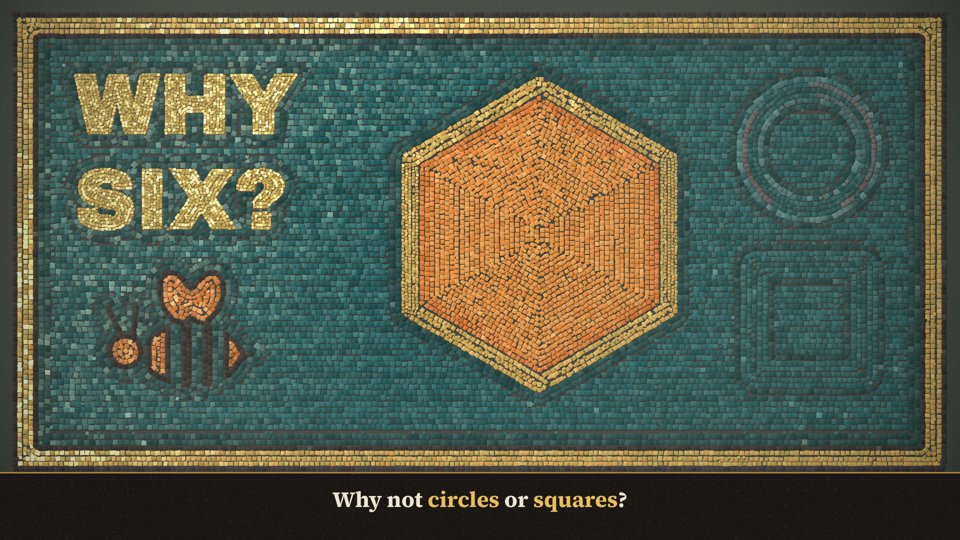 Mosaic MuralHow it works · Numbers · HistoryUse this style
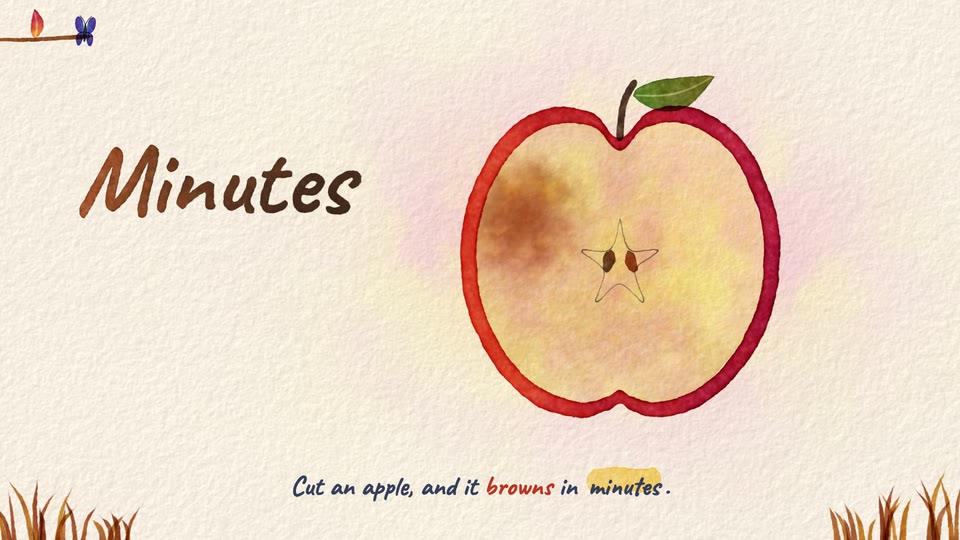 WatercolorNature · Everyday science · First scienceUse this style
 Flat VectorHow it works · Everyday life · Money basicsUse this style
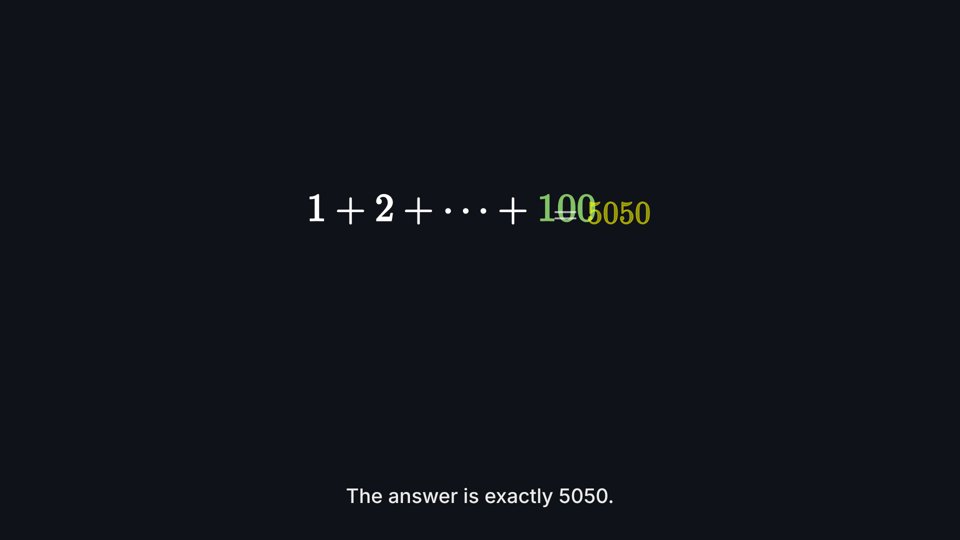 Math AnimationMath proofs · Physics · StatisticsUse this style
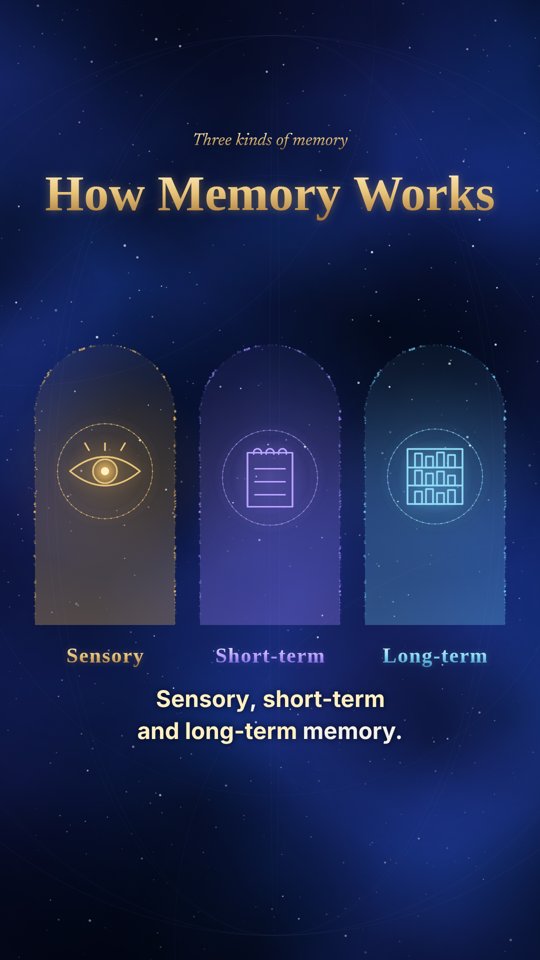 Starry NightComparing ideas · Psychology · Everyday knowledgeUse this style
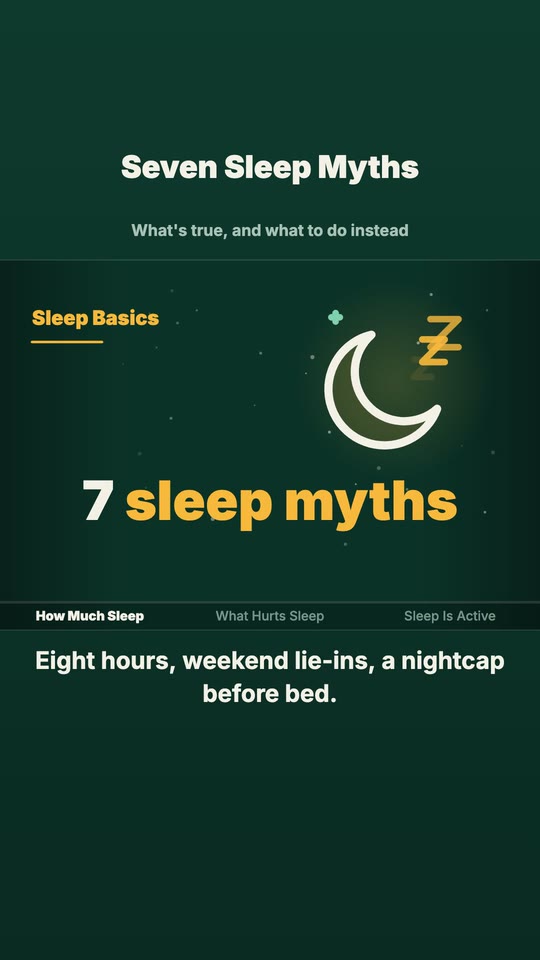 Column CardsHow-to lists · Ideas explained · Everyday know-howUse this style
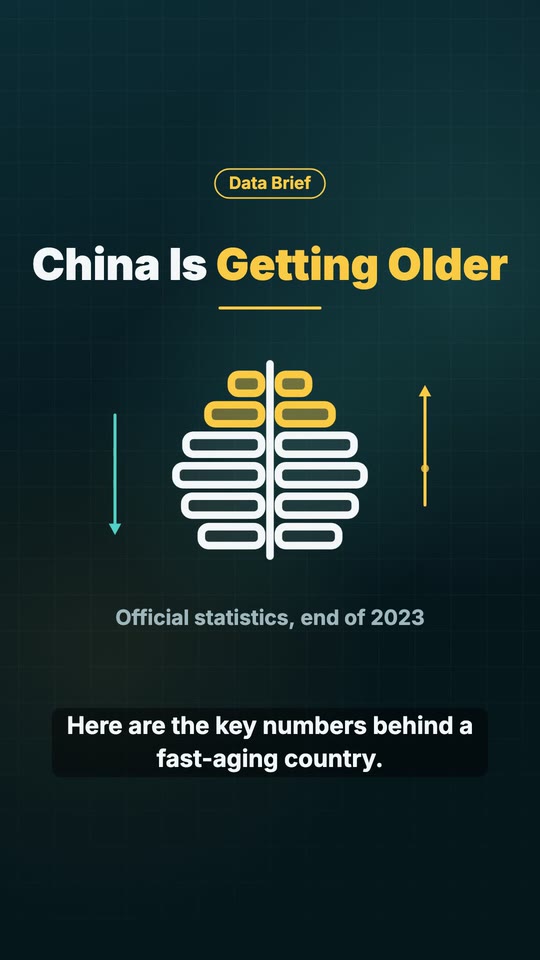 Data BriefReport summaries · Industry trends · Data explainersUse this style
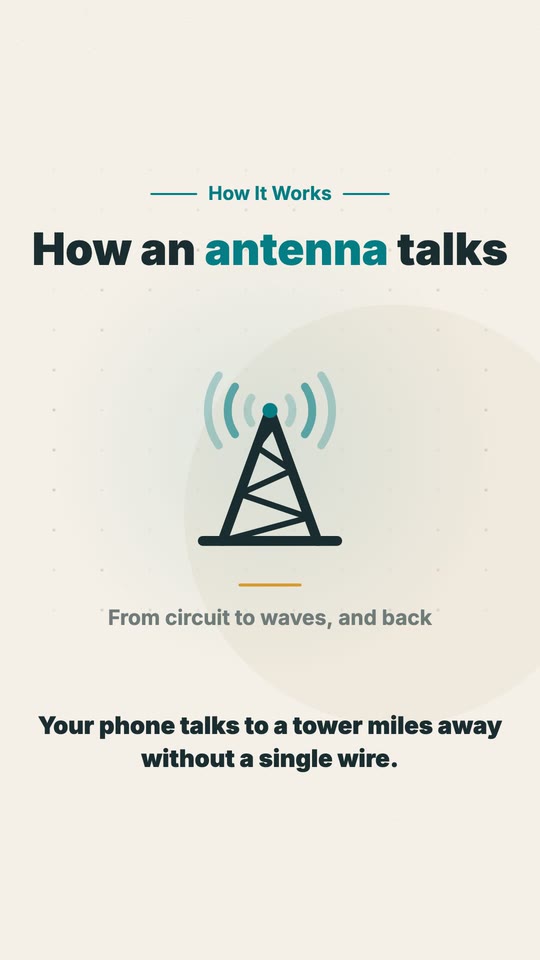 Paper DiagramHow it works · Tech explainers · Hardware basicsUse this style
Good to know
- Animated Video is for members. Subscribe to upload your material and create.
- The orientation follows the style you pick. If a style only comes in portrait, the video will be portrait.
- The sample on each card only shows the style. Your video explains your own material.
- With Review first on, if you don't confirm the script within 10 minutes, the video is made from it as it is.
Questions
Which languages can an Animated Video narrate in?
Each style narrates in certain languages. On the English and Japanese site, the styles listed can narrate in that language. If the voice you picked speaks a language the style doesn't support, you'll be asked to choose another voice or another style before it starts.
How long will the video be?
On Auto, the length depends on how much material you give it. To set it yourself, open Length in the box; the options depend on the style, and each one shows its estimated credits.
Can I change the video after it's made?
Yes. Adjust on the task page changes the colors, caption size, pace, background music, logo and watermark in seconds. For anything else, describe the change in the chat, or click Annotate to mark the spot in the frame.