
Slide Video
Your content becomes a slide-by-slide explainer. You can edit the text, images and narration on any slide.
On this page
Step 1: Choose Slide Video
On the create page, click Slide Video below the box.
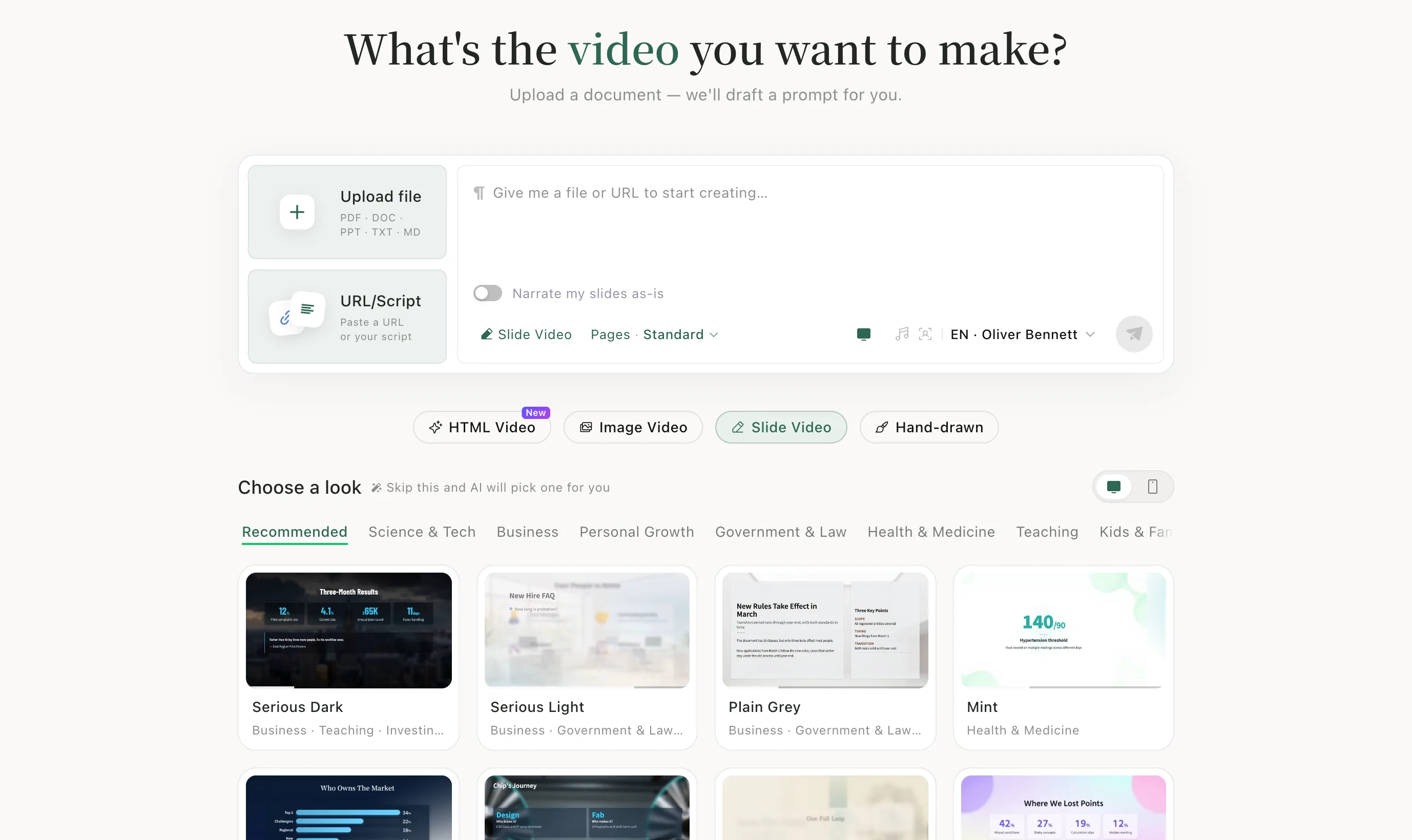
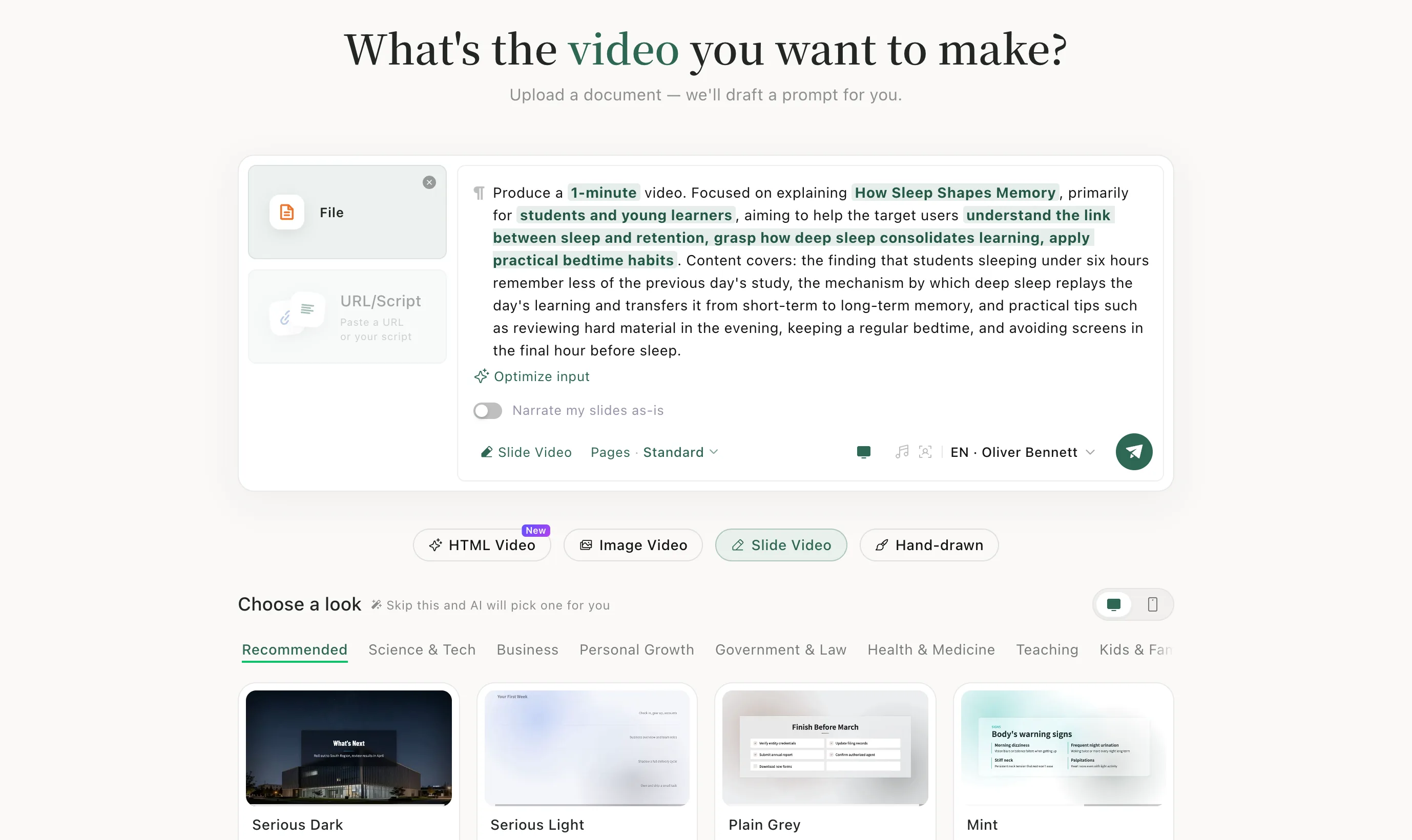
Step 2: Upload your material
Click Upload file and add your document. The AI reads it and drafts the prompt.
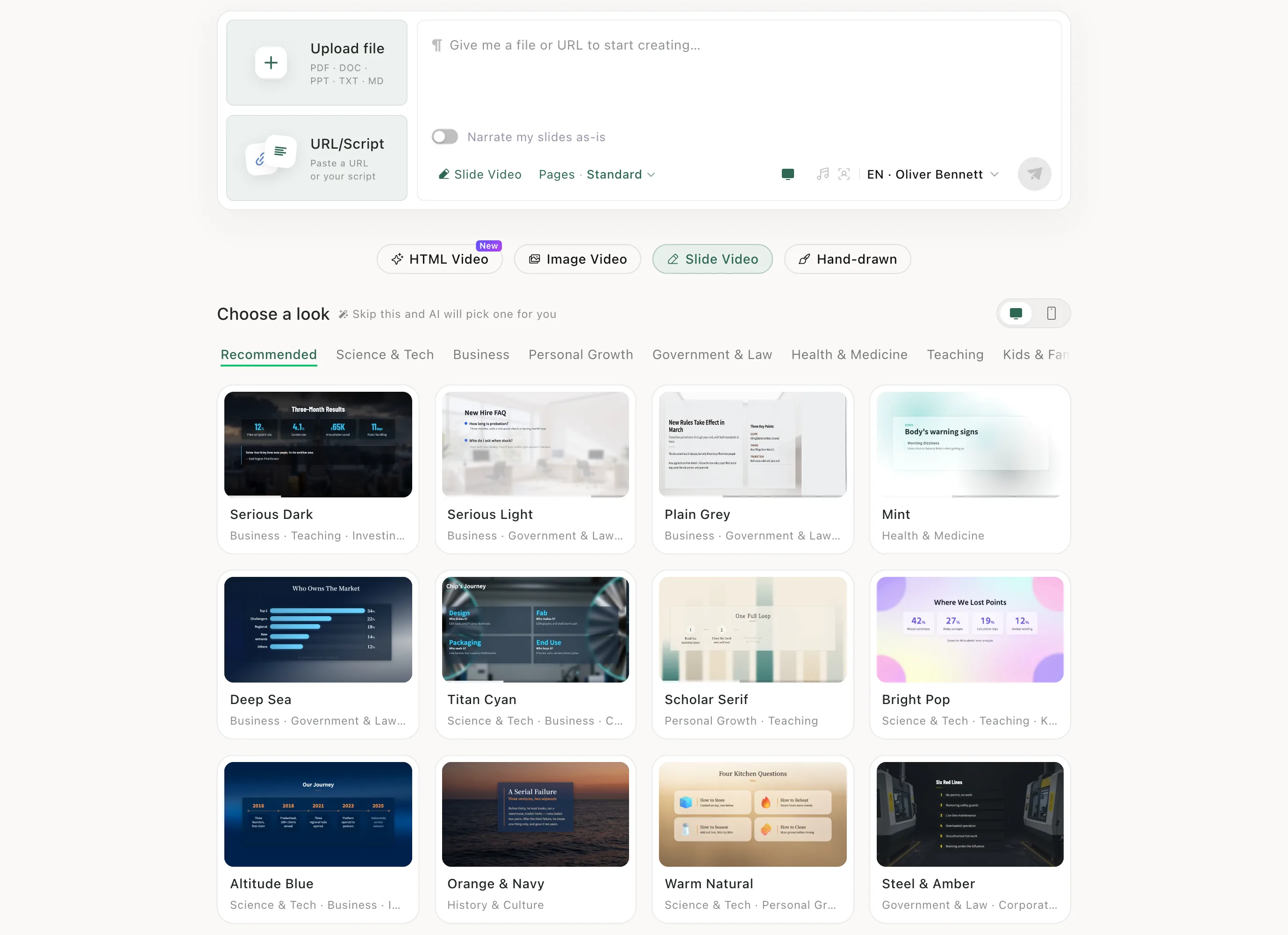
Step 3: Choose a look
Browse the looks under Choose a look and click one, or leave it to the AI.
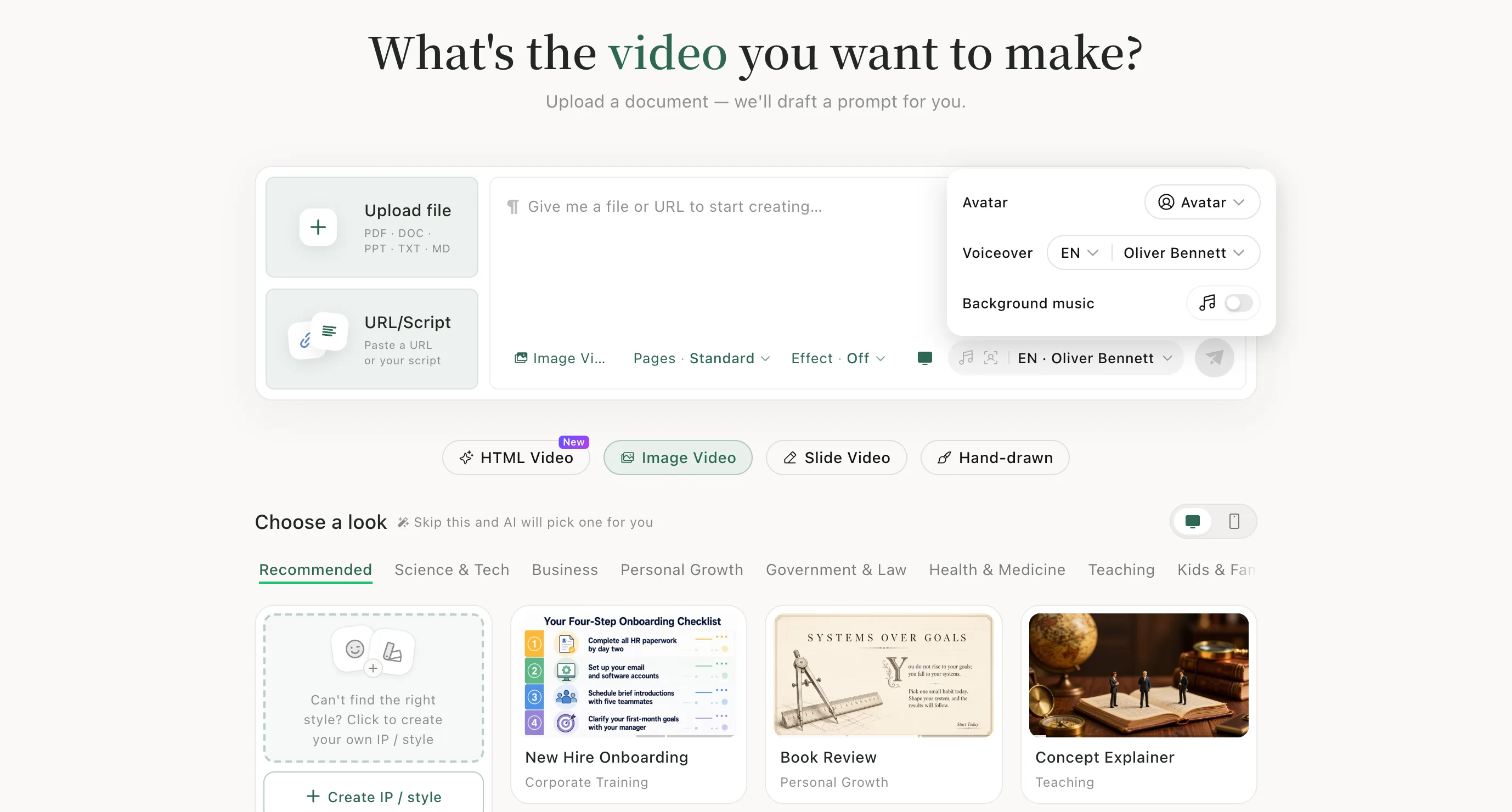
Step 4: Set the voice, then send
Click the voice name in the bottom right to choose an avatar, voice and background music. Then click the green send button.
After it's made
After it's made, change the text, images or narration slide by slide on the task page — see Edit and download.
When to use it
Slide Video is good for explainers, product intros, courses and presentations. Already have a finished deck? Narrate my slides as-is keeps it exactly as it is.
A few of the looks
Real previews from Choose a look on the create page. Hover to play.