
HTML Video
Images and graphics are laid out on a canvas and turned into an editable video, in landscape or portrait.
On this page
Step 1: Choose HTML Video
On the create page, click HTML Video below the box.
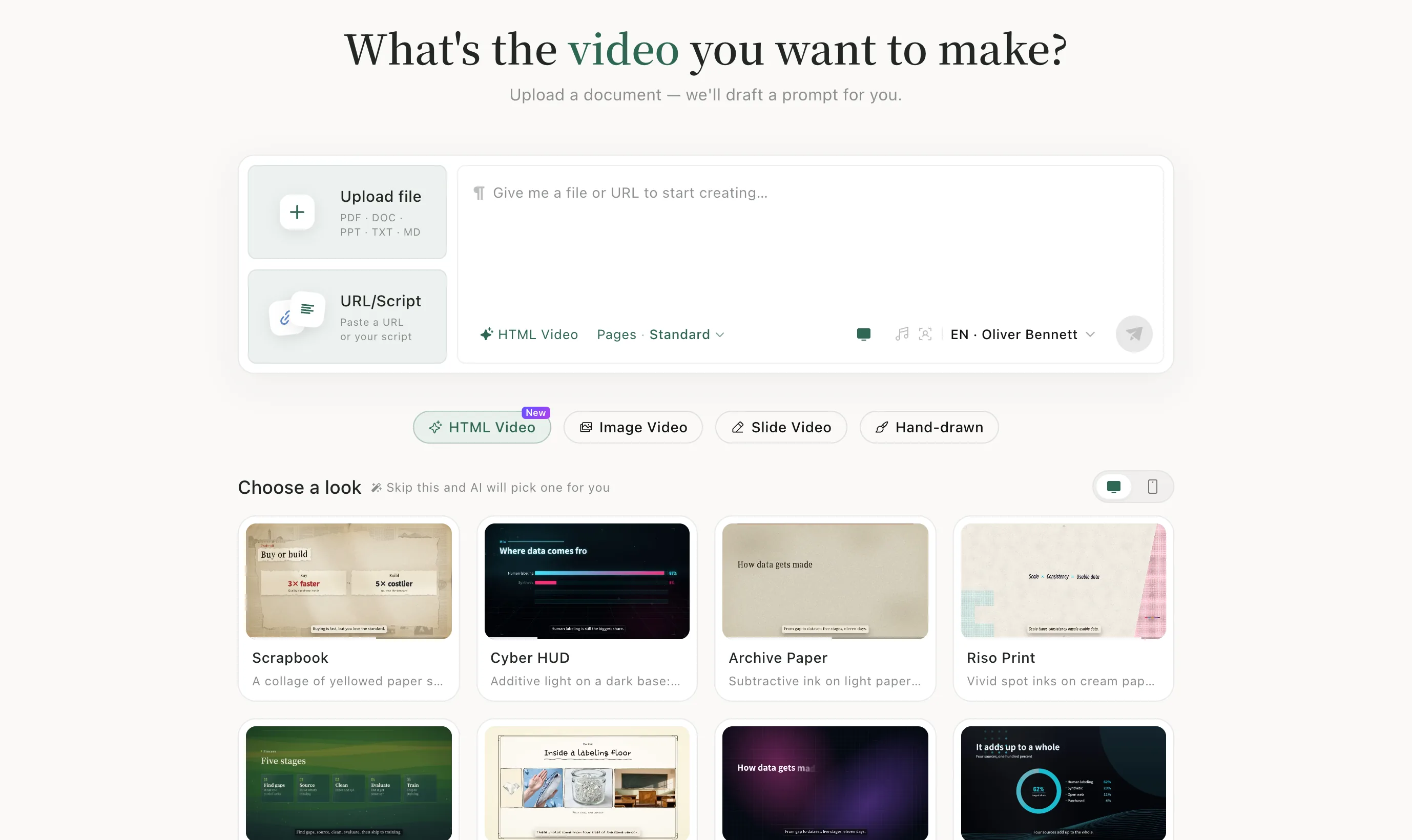
Step 2: Upload your material
Click Upload file, or use URL/Script for a web link or your own script. The AI reads it and writes the prompt.
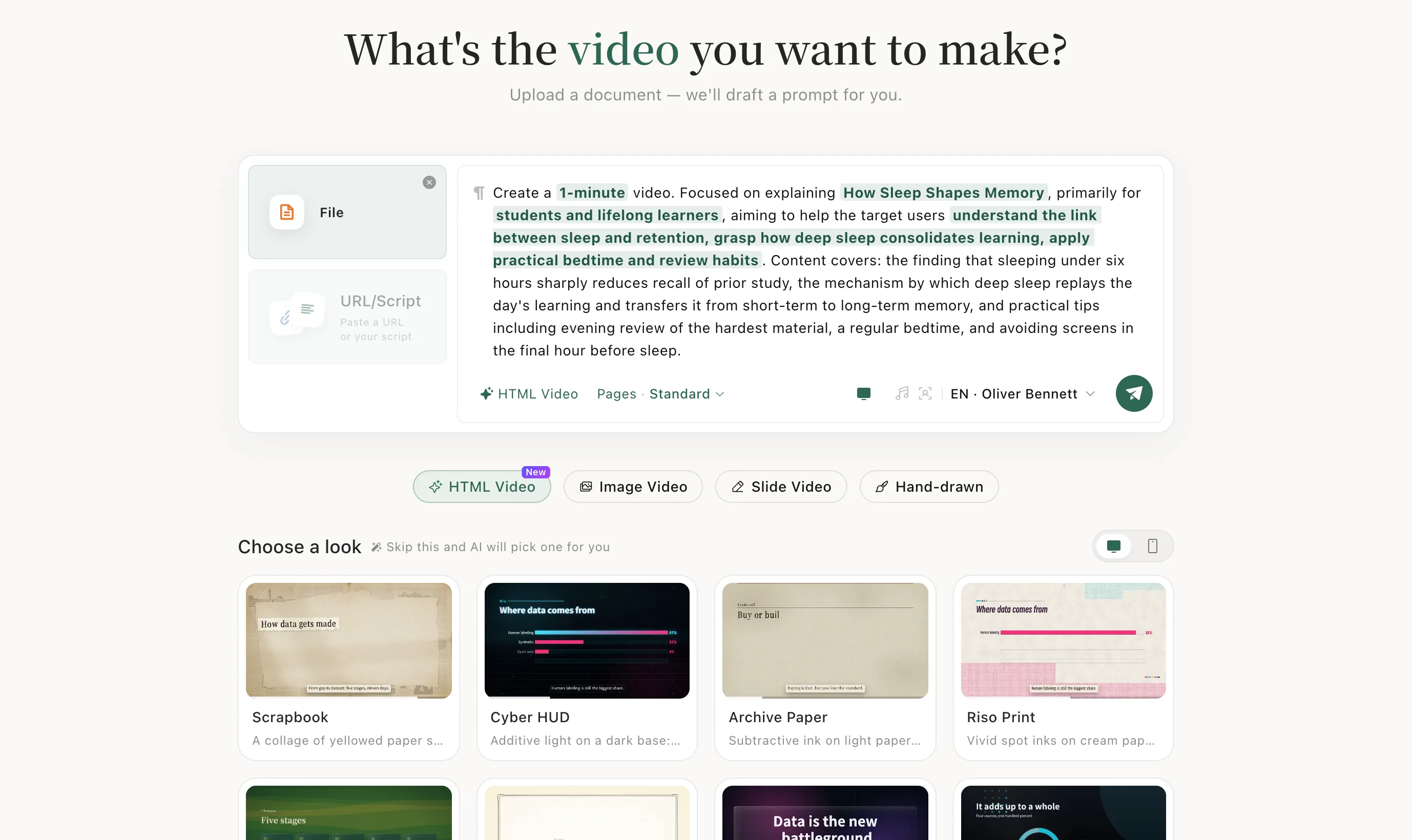
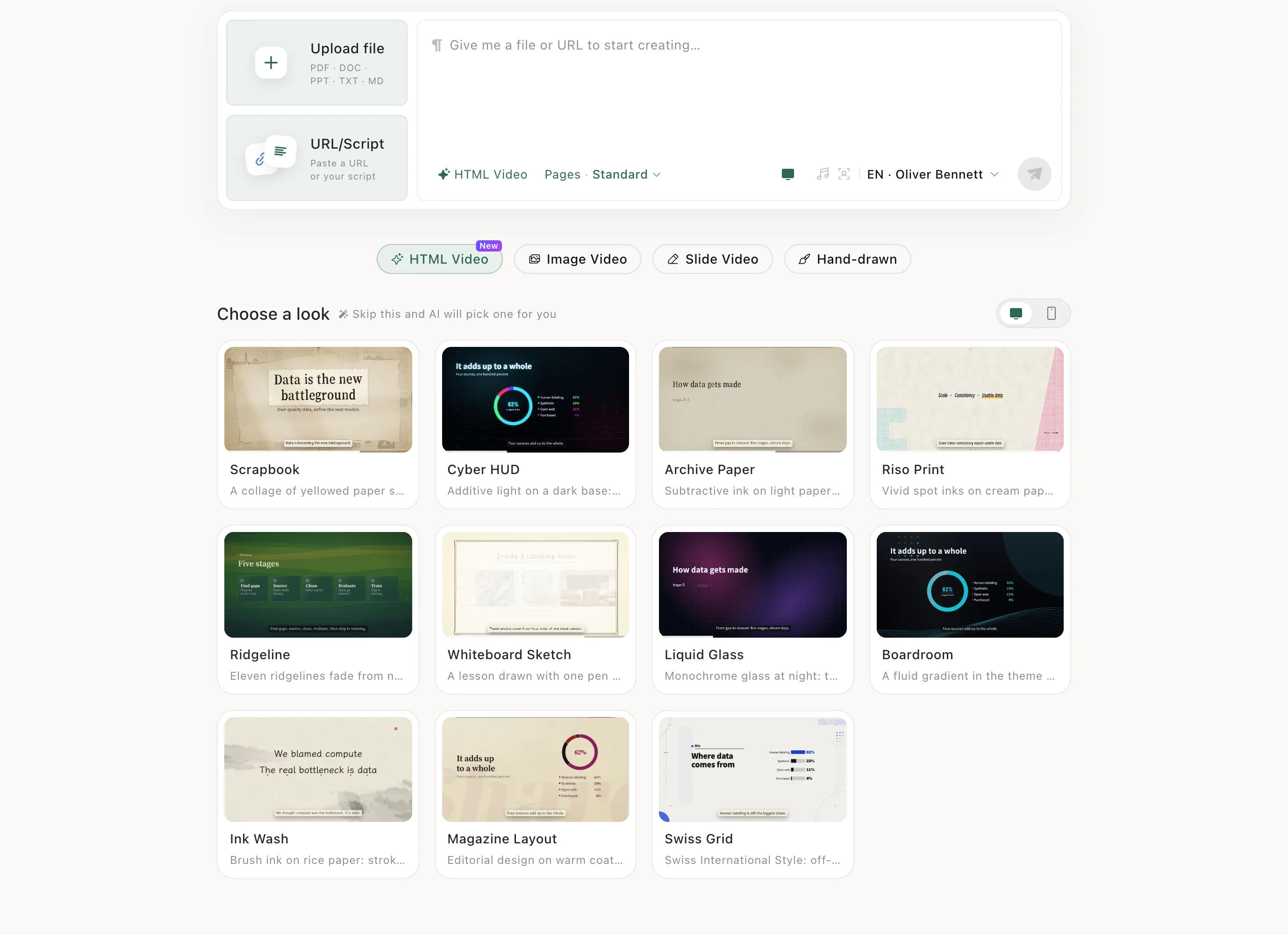
Step 3: Choose a look
Every card under Choose a look is a real preview. Click the one you like — or skip it and the AI picks one. The two screen icons on the right preview the looks in landscape or portrait.
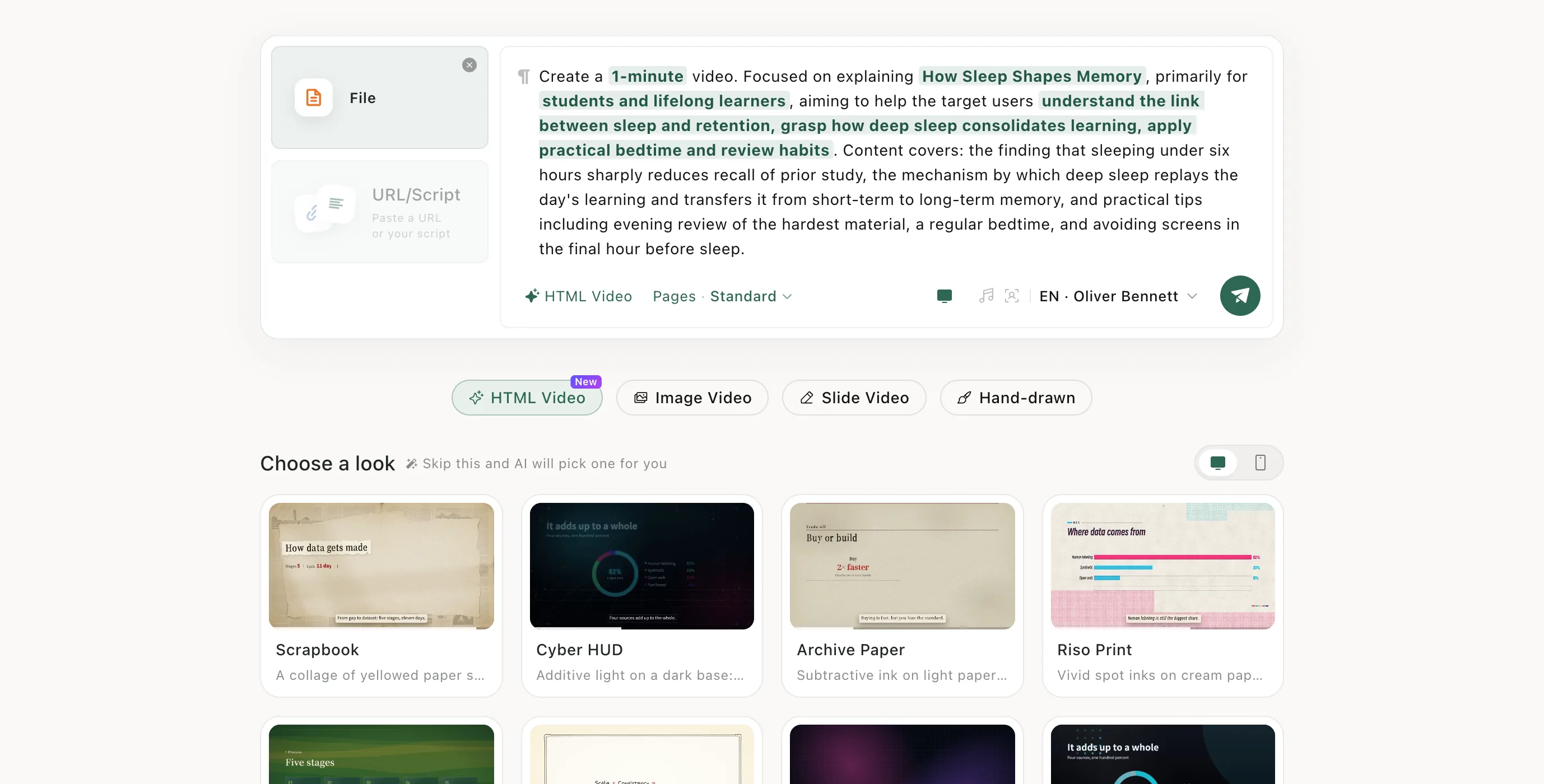
Step 4: Send
Check the prompt and the voice, then click the green send button.
After it's made
Open the task page to preview it, change any page and download it — see Edit and download.
When to use it
Pick HTML Video for designed scenes with charts, figures and layout. Want an illustration on every page? Use Image Video. Already have finished slides? Narrate my slides as-is keeps them.
A few of the looks
Real previews from Choose a look on the create page. Hover to play.