
Edit and download
Preview the finished video, change what you need, and download the MP4 — or the parts it's made of.
Going furtherAnnotated screenshots
On this page
Step 1: Open it from My Works
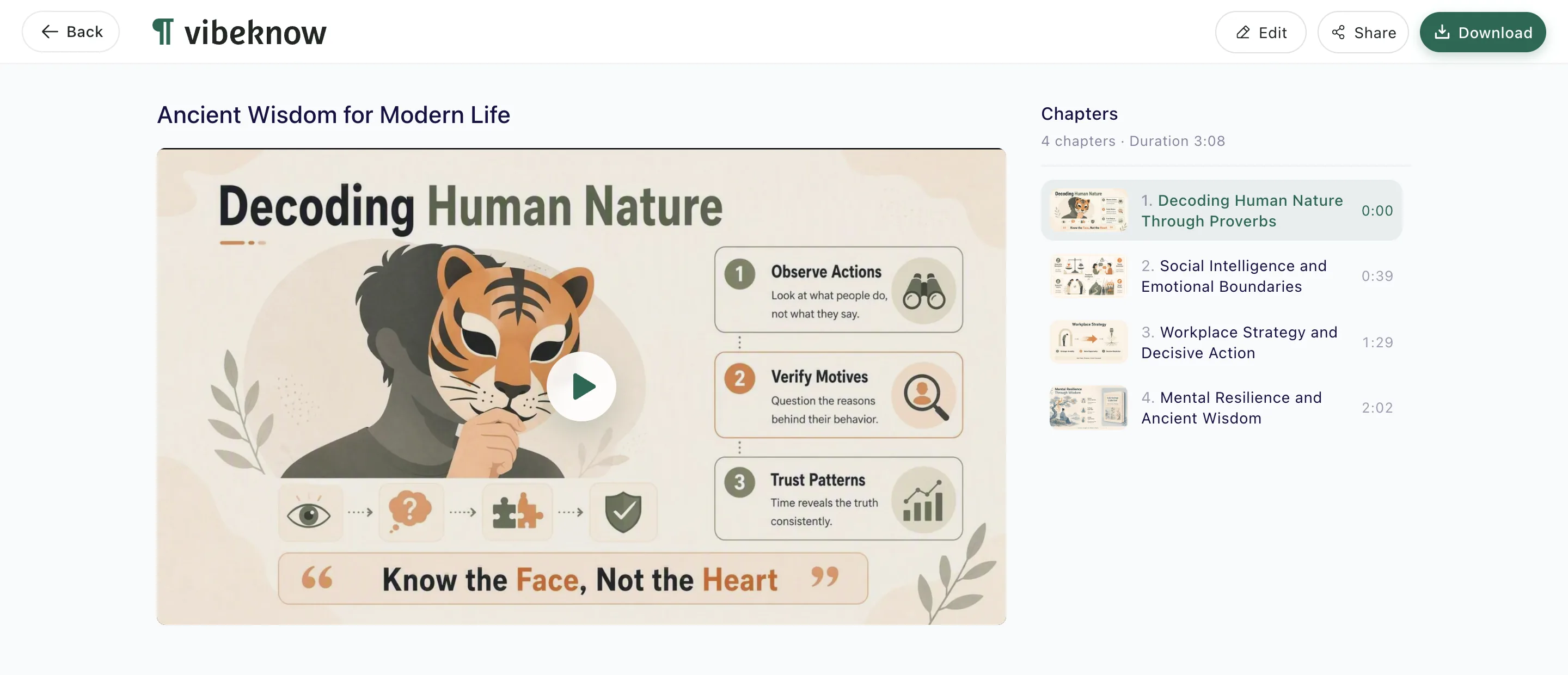
Every finished video is in My Works. Open one to play it; its chapters are listed on the right, and Edit, Share and Download are at the top.
Step 2: Edit a page
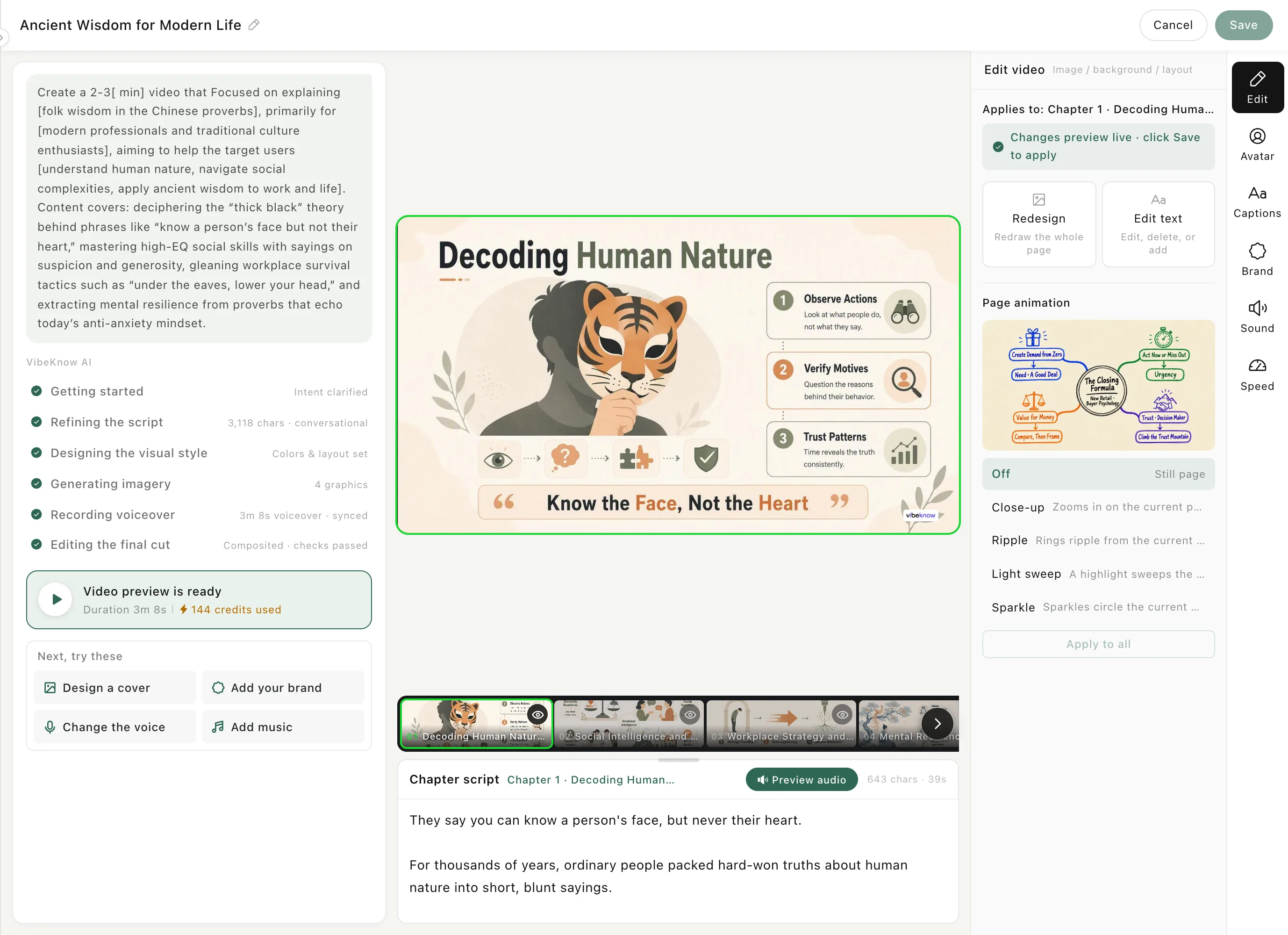
Click Edit. Pick a chapter in the strip under the preview, then use the panel on the right — depending on the video type you'll see options such as Redesign (redraw the whole page) and Edit text. Avatar, Captions, Brand, Sound and Speed are in the column beside it. Click Save to apply.
Step 3: Download
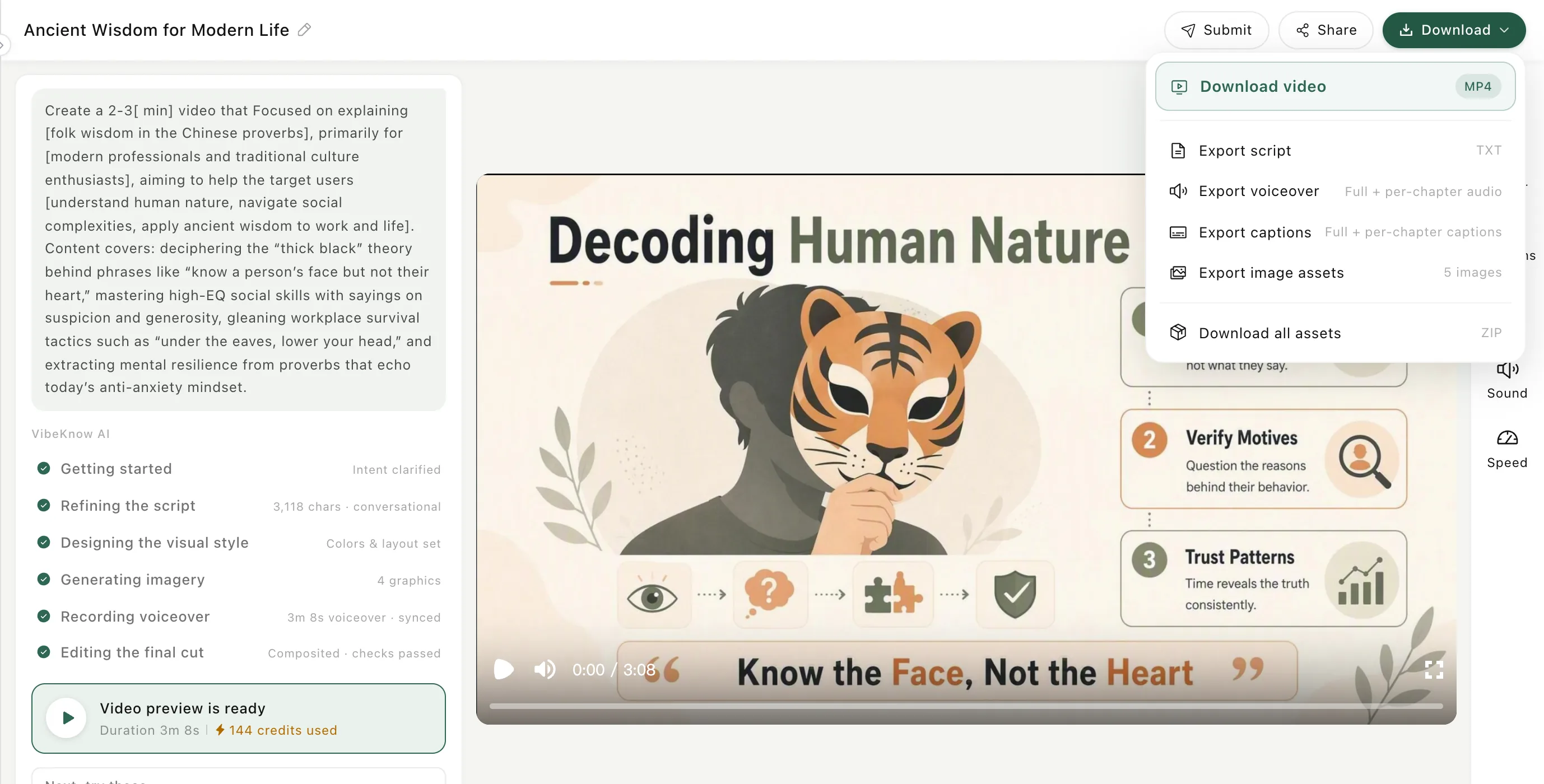
On the task page, open Download. Download video gives you the MP4. Export the script (TXT), voiceover, captions or image assets on their own, or choose Download all assets for a ZIP.
Good to know
- Below the progress panel, Next, try these suggests quick changes: Design a cover, Add your brand, Change the voice and Add music.
- Free-plan exports carry a watermark; paid plans remove it. See Pricing.
Keep learningFAQ