
Image Video
The AI draws the visuals for every page, then adds voiceover and transitions to make an illustrated explainer.
On this page
Step 1: Choose Image Video
On the create page, click Image Video below the box.
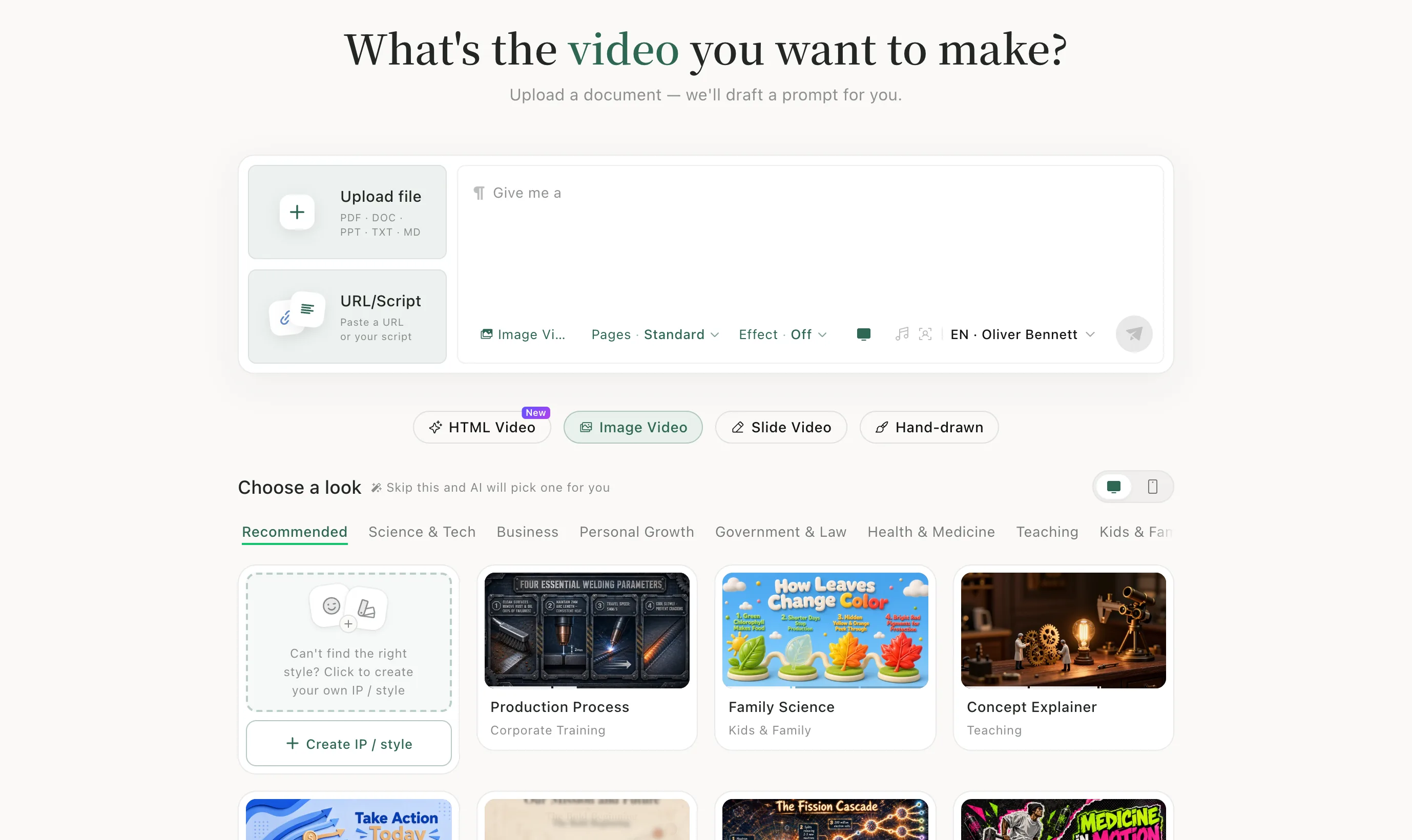
Step 2: Upload your material
Click Upload file and add the document you want to explain. The AI writes a prompt from it.
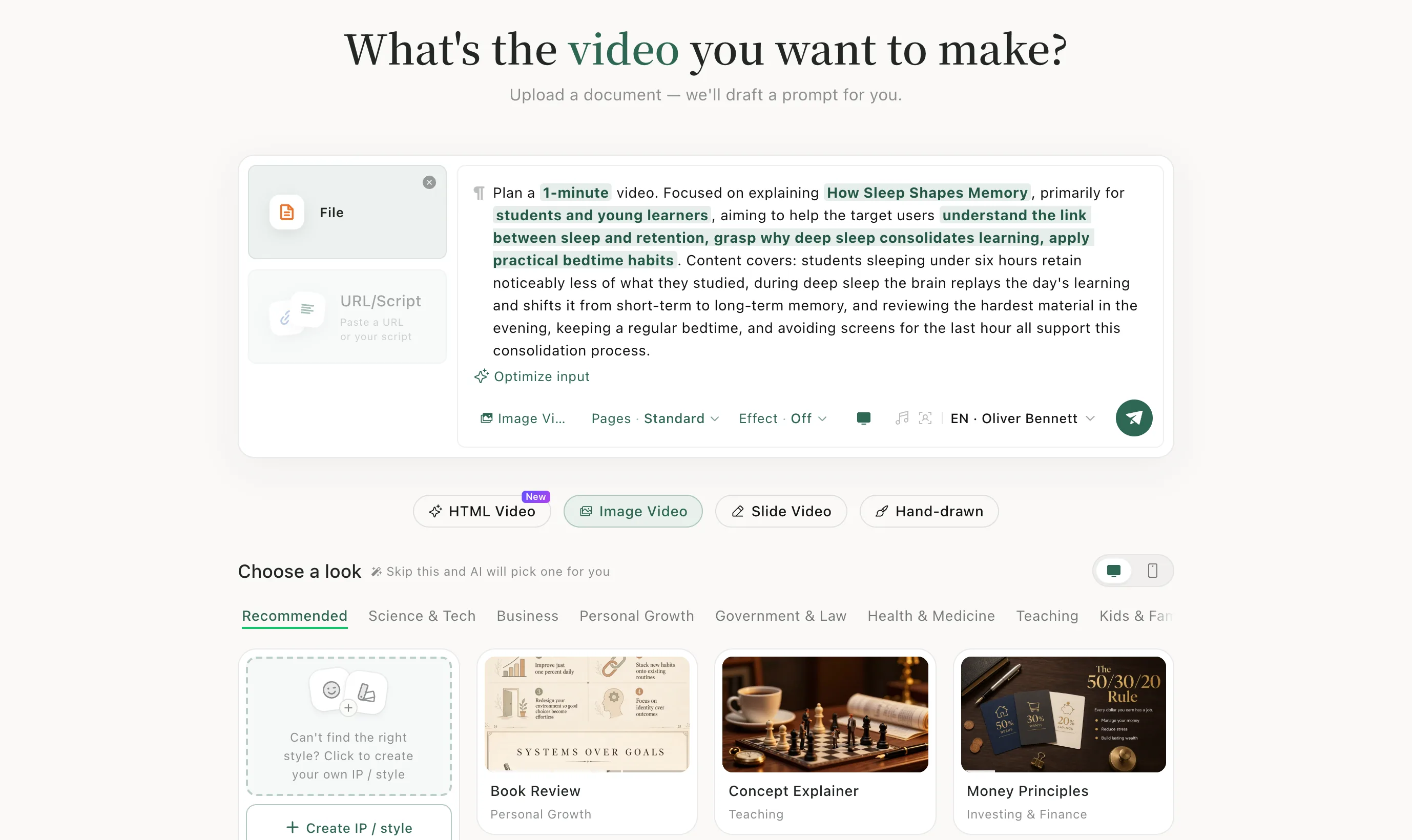
Step 3: Set the number of pages
Open Pages under the prompt. Fewer packs the most into each page, Standard is a moderate page count, and More gives the fastest pace but uses more credits.
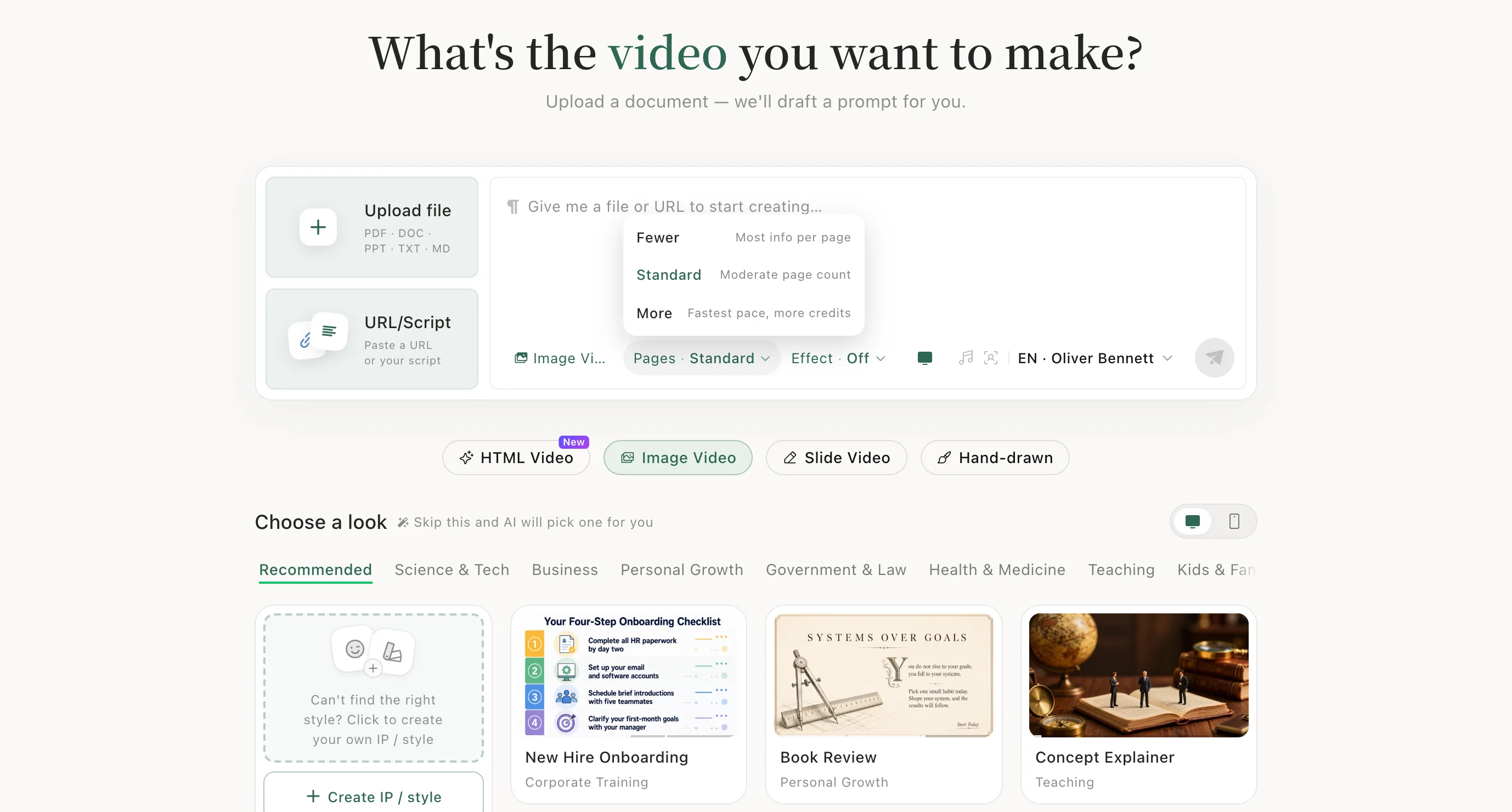
Step 4: Choose a look, then send
Browse the looks by topic — Science & Tech, Business, Teaching and more — and click one. Then click the green send button.
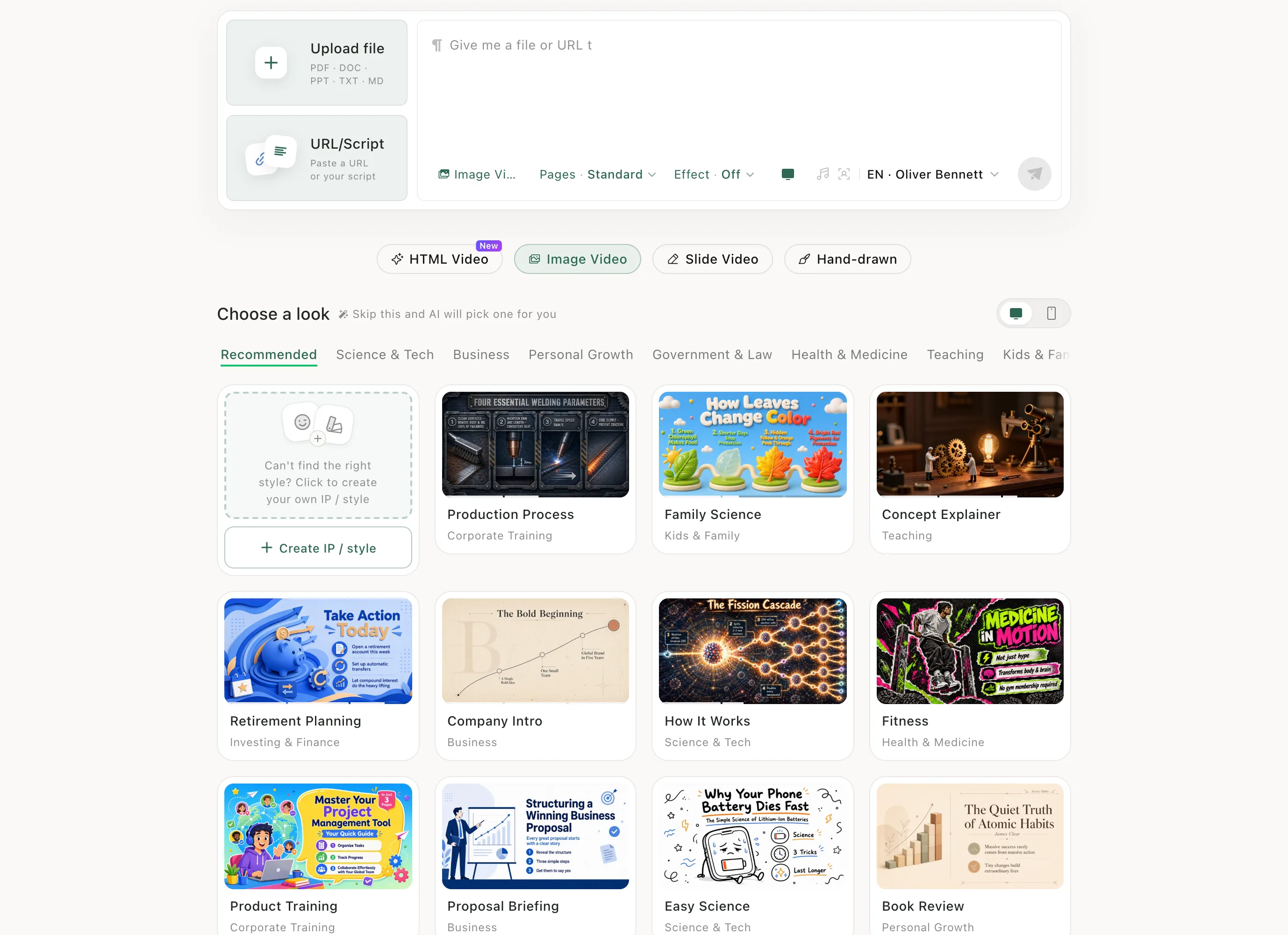
After it's made
On the task page you can redraw a whole page or change its text — see Edit and download.
When to use it
Image Video suits science, book reviews and breaking down ideas. For scenes built from charts and layout, try HTML Video. For line drawings drawn on screen, try Hand-drawn.
A few of the looks
Real previews from Choose a look on the create page. Hover to play.
Good to know
- The first card under Choose a look is Create IP / style. Use it to train your own character and style — see Your own character and style.