
Narrate my slides as-is
Keep your PowerPoint or PDF deck exactly as designed and let the AI narrate it page by page.
Video typesAnnotated screenshots
On this page
Step 1: Choose Slide Video
On the create page, click Slide Video below the box.

Step 2: Upload your deck
Click Upload file and add a PPT, PPTX or PDF. A Narrate my slides as-is switch appears under the prompt.
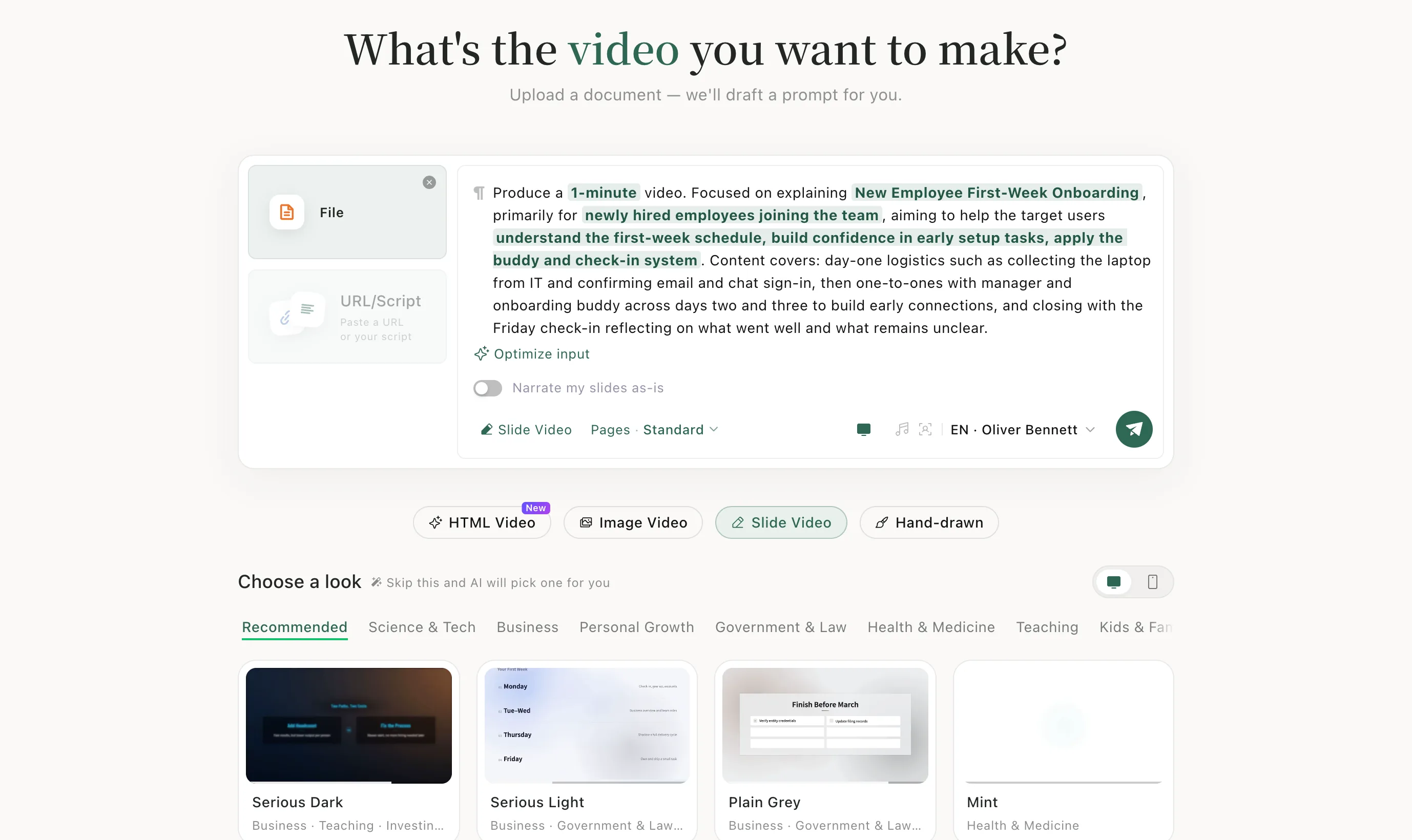
Step 3: Turn on Narrate my slides as-is
Switch it on. Choose a look disappears, because your slides keep their own design.
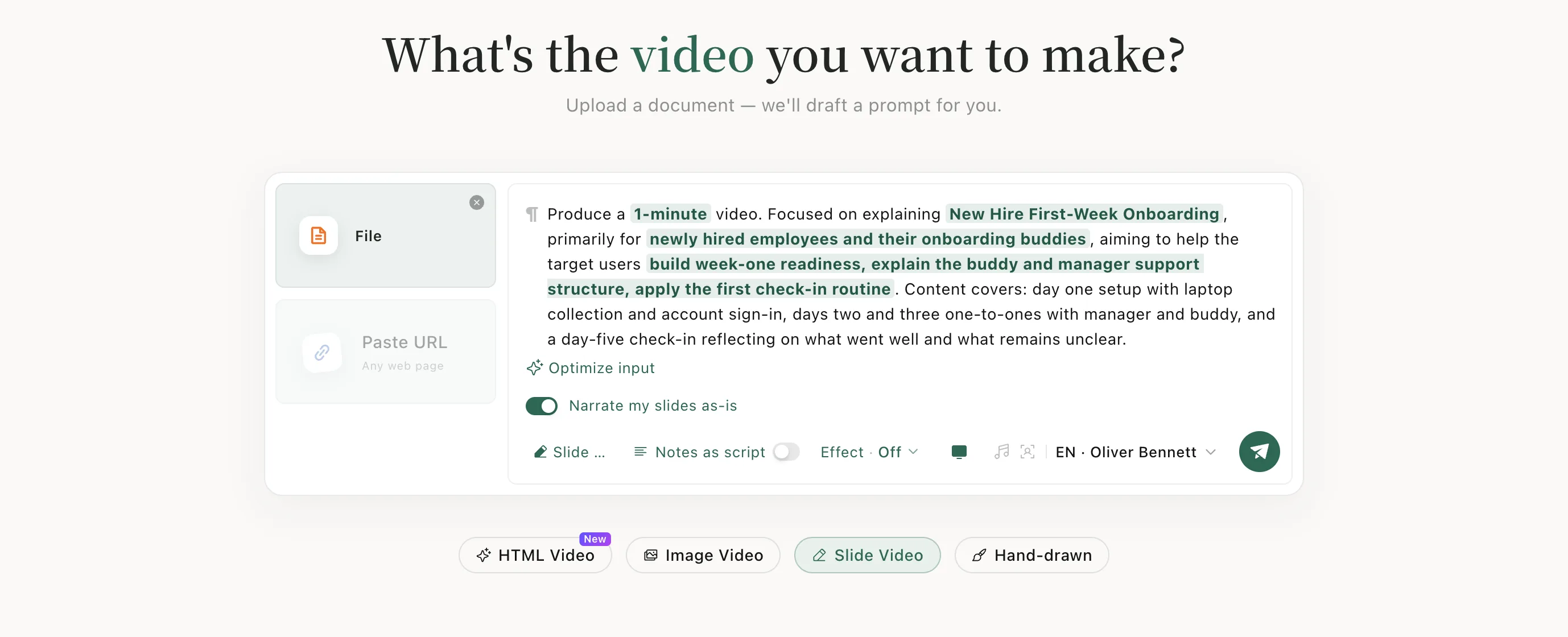
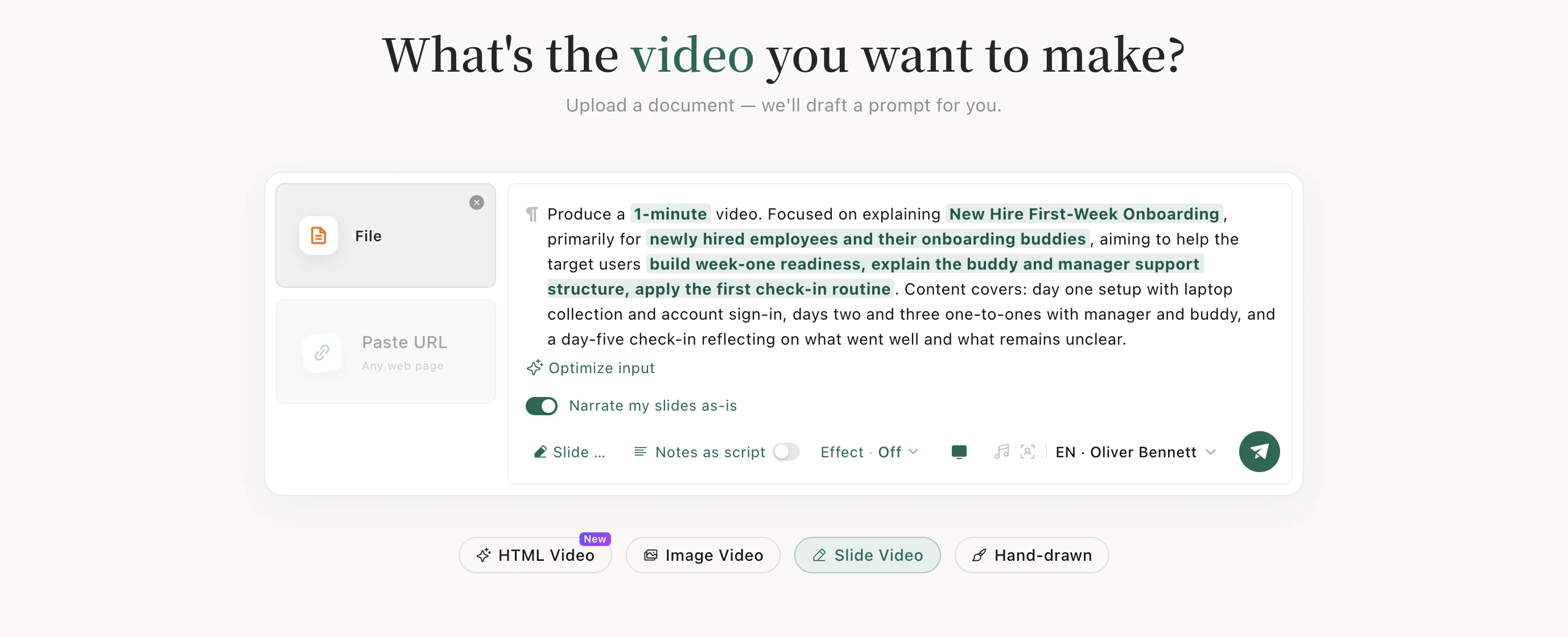
Step 4: Use your speaker notes (optional)
To narrate from your speaker notes, turn on Notes as script. You'll be asked to check that every slide has complete notes. Then click the green send button.
After it's made
Preview it on the task page and download it — see Edit and download.
When to use it
Use it for decks you've already finished — training, lectures, product walkthroughs. If you only have a document or notes, Slide Video designs the slides for you.
Good to know
- Notes as script appears with PowerPoint files. Write the notes the way you'd say them out loud.
Keep learningNarrate your own script