
Quick start
Everything on the create page, in the order you'll use it.
On this page
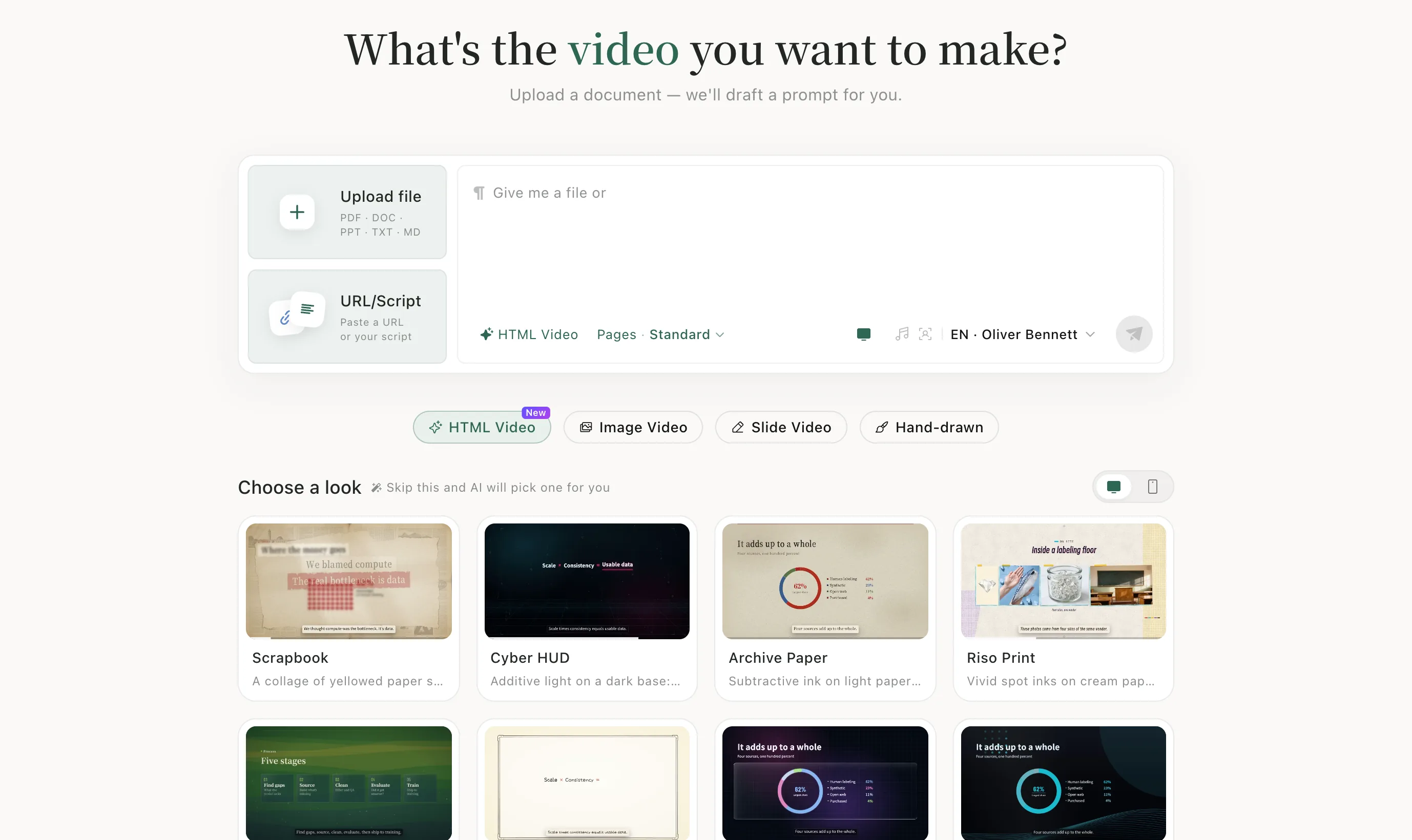
Step 1: Upload a file
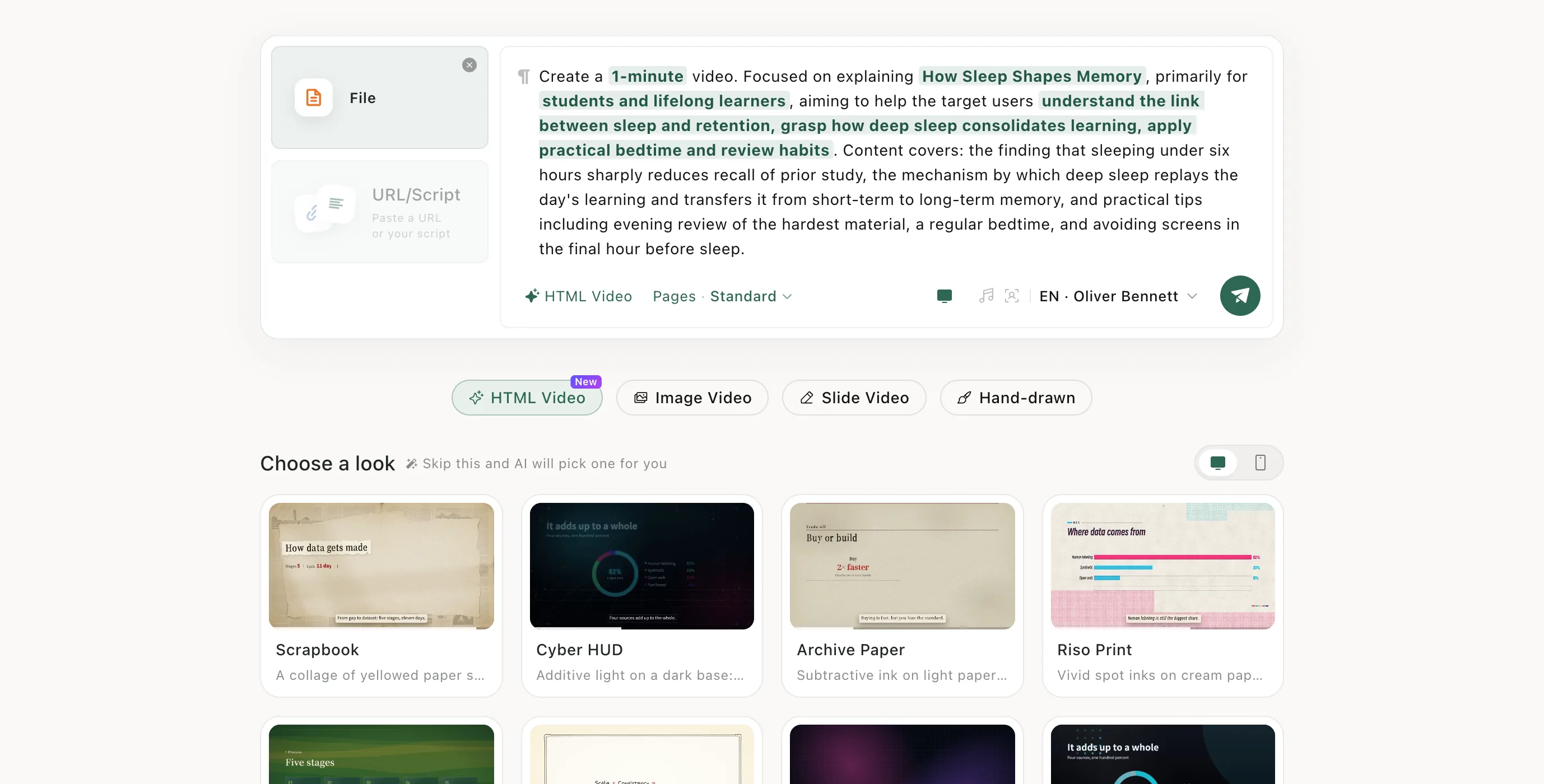
Click Upload file and choose a PDF, Word, PowerPoint, TXT or Markdown file, up to 50 MB.
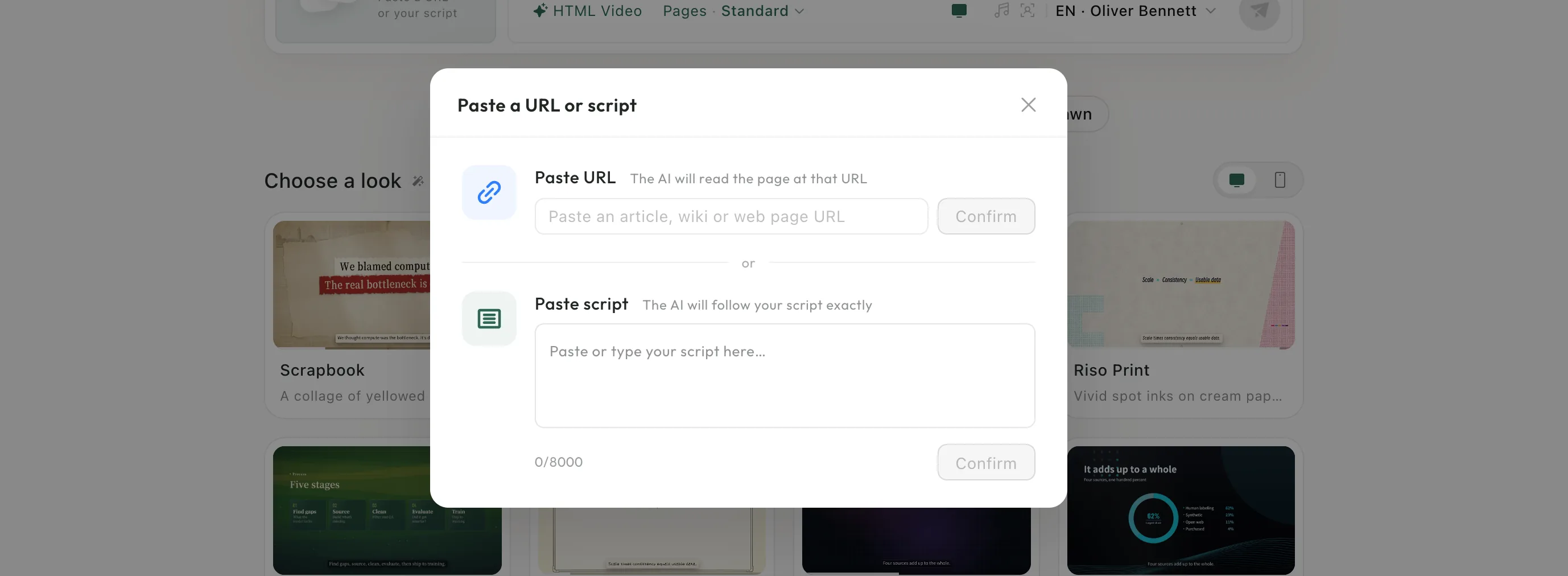
Step 2: Or paste a link or a script
Click URL/Script. Paste URL reads an article, wiki or web page. Paste script takes up to 8,000 characters, and the AI follows your script exactly.
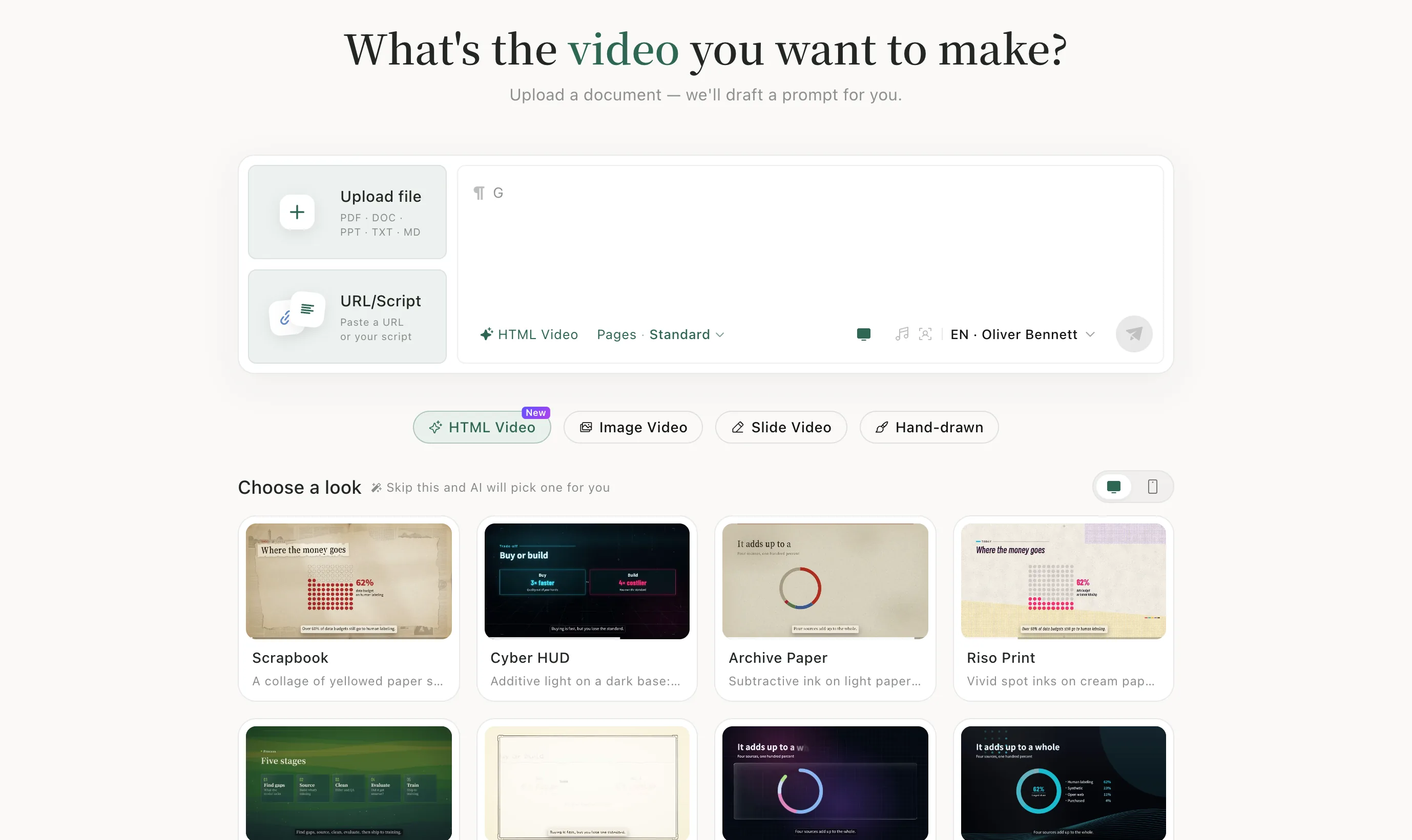
Step 3: Pick a video type
Below the box, choose HTML Video, Image Video, Slide Video or Hand-drawn.
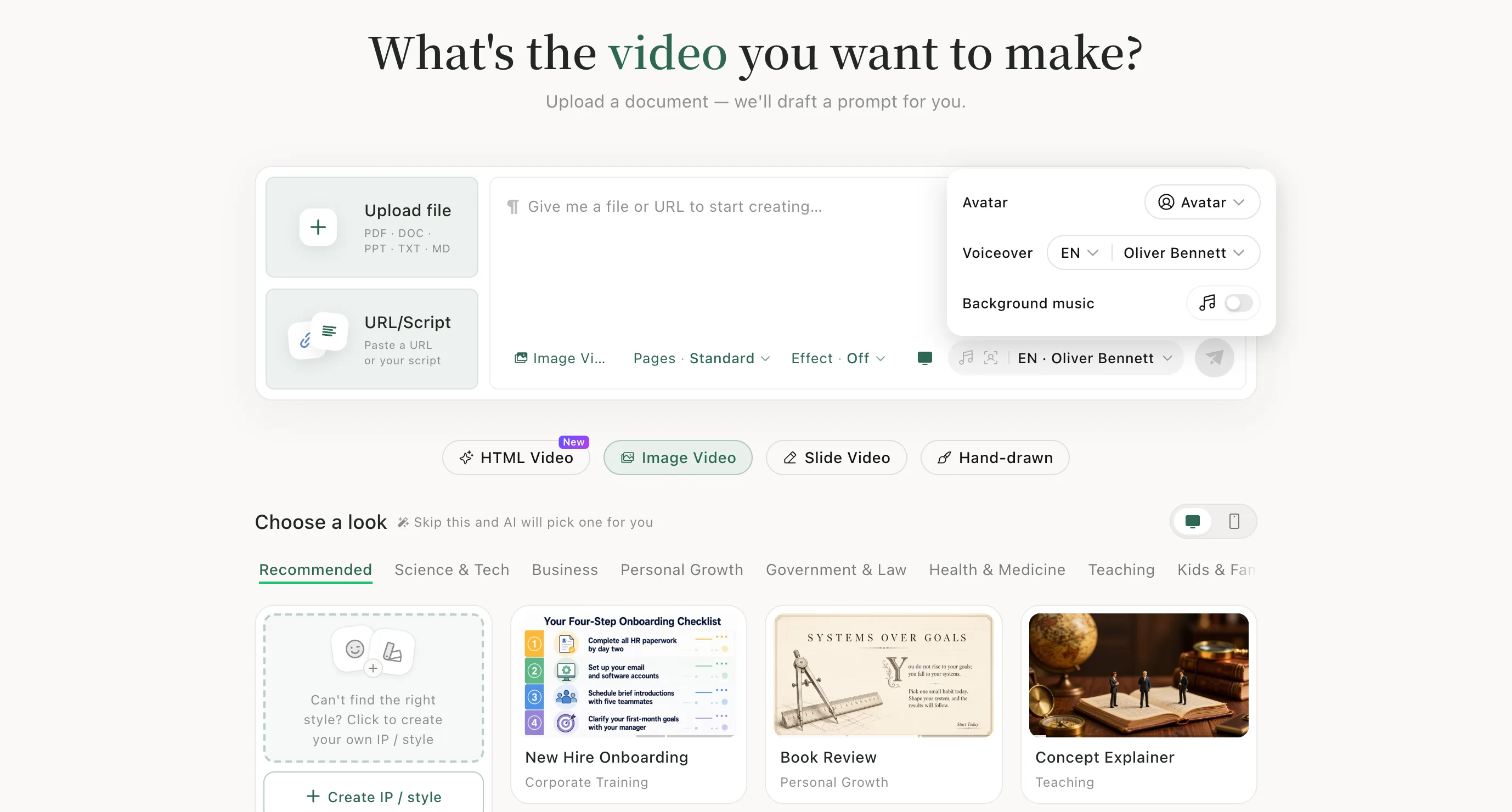
Step 4: Set the voice and music
Click the voice name in the bottom right to choose an avatar, the narration language and voice, and whether to add background music. The screen icon to its left switches between landscape (16:9) and portrait (9:16).
Step 5: Send
Read the prompt the AI wrote from your material, change anything you like, then click the green send button.
Step 6: Download when it's ready
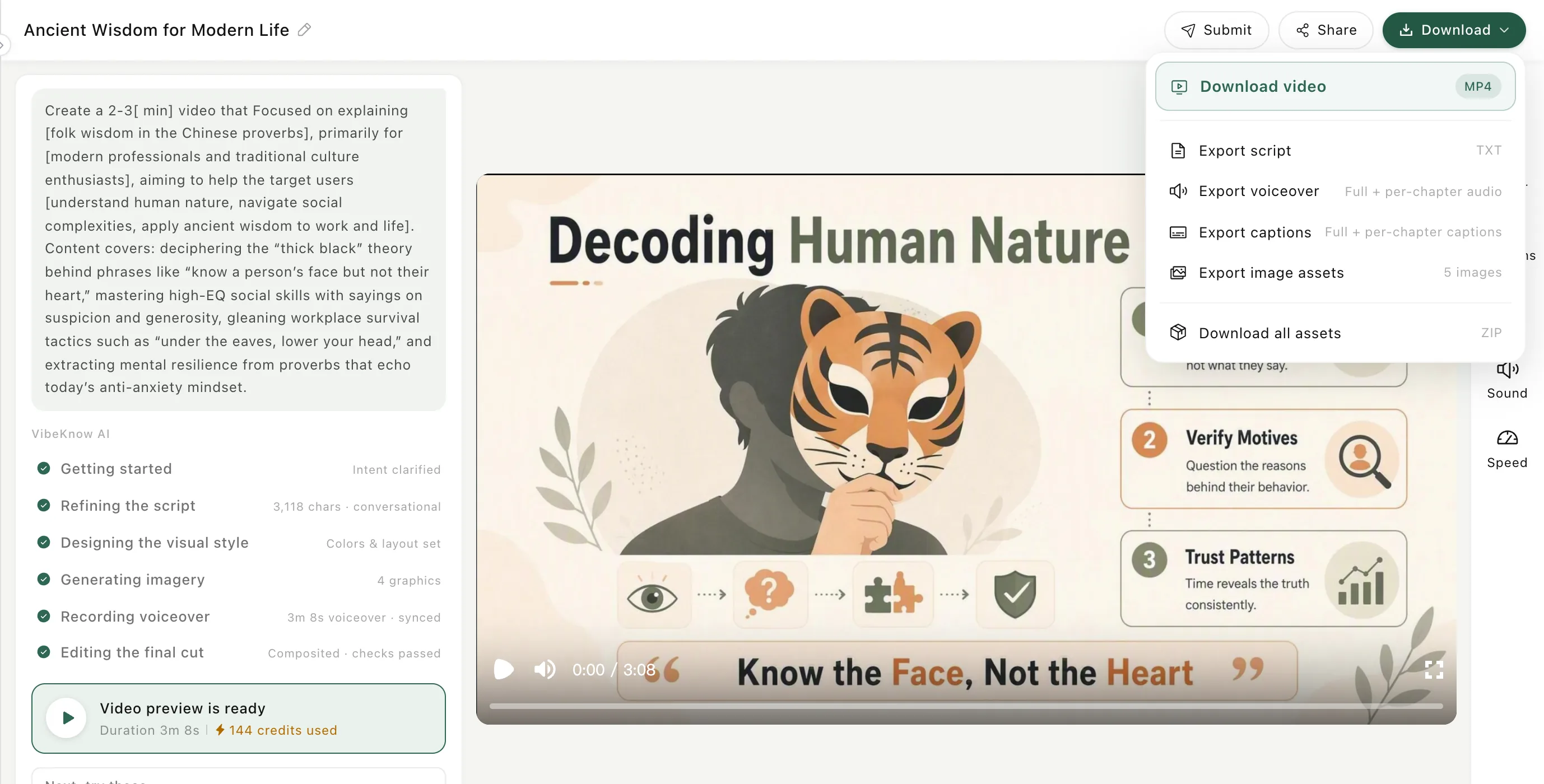
When the task page says the preview is ready, open Download at the top right and choose Download video.
Good to know
- Uploading a file and pasting a script do different things: with a file the AI writes the narration; with Paste script it follows your words. See Narrate your own script.