
Make your first video
From one file to a finished video, with a screenshot for every click.
On this page
Step 1: Open Create and add your material
Sign in and open Create Video. Add your material on the left: Upload file takes PDF, Word, PowerPoint, TXT and Markdown files up to 50 MB, and URL/Script takes a web link or a script you've written.
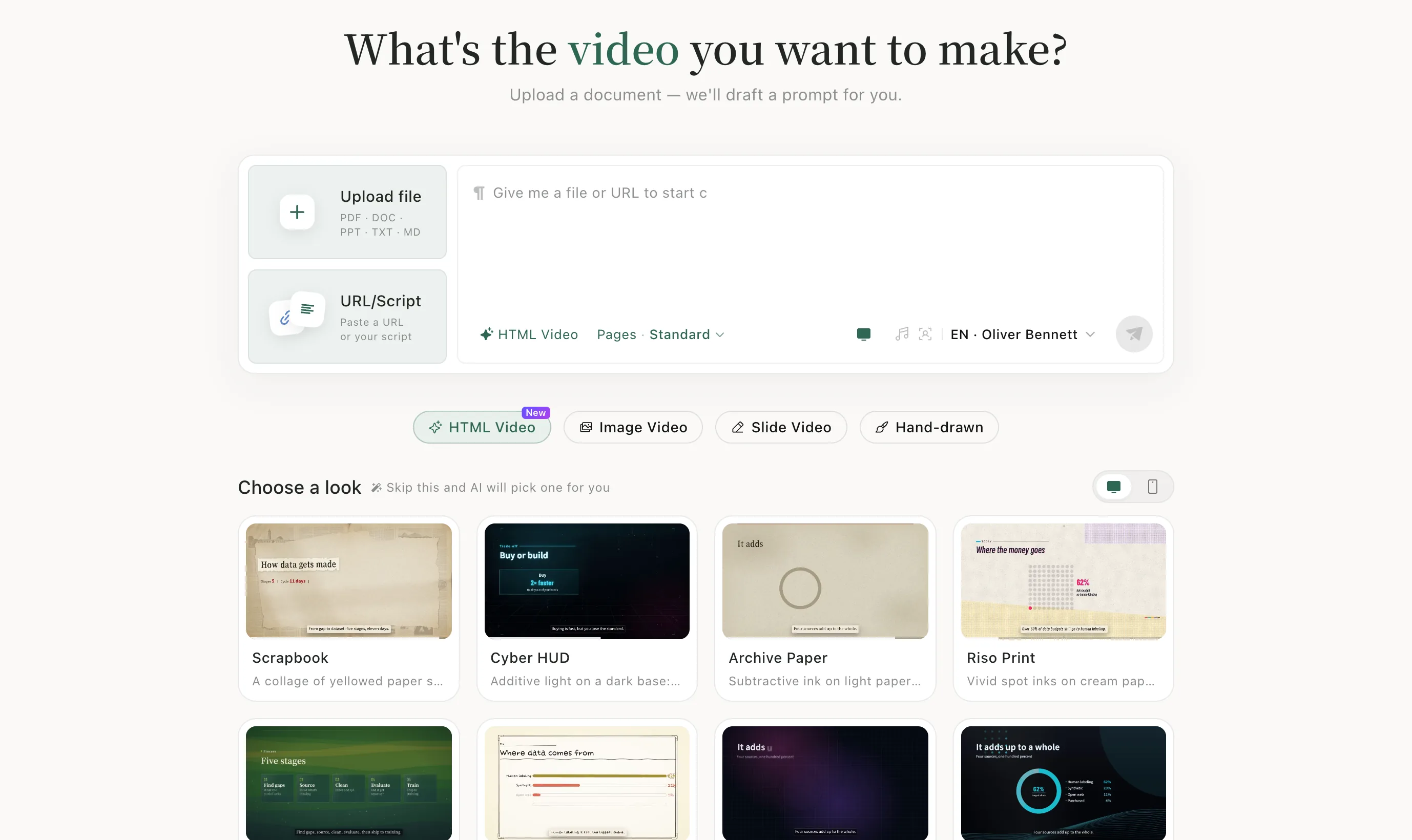
Step 2: Let the AI draft the prompt
Once your file is read, the box on the right fills with a prompt written from it — the topic, who it's for, how long, and what it should cover. It's plain text, so edit anything you want.
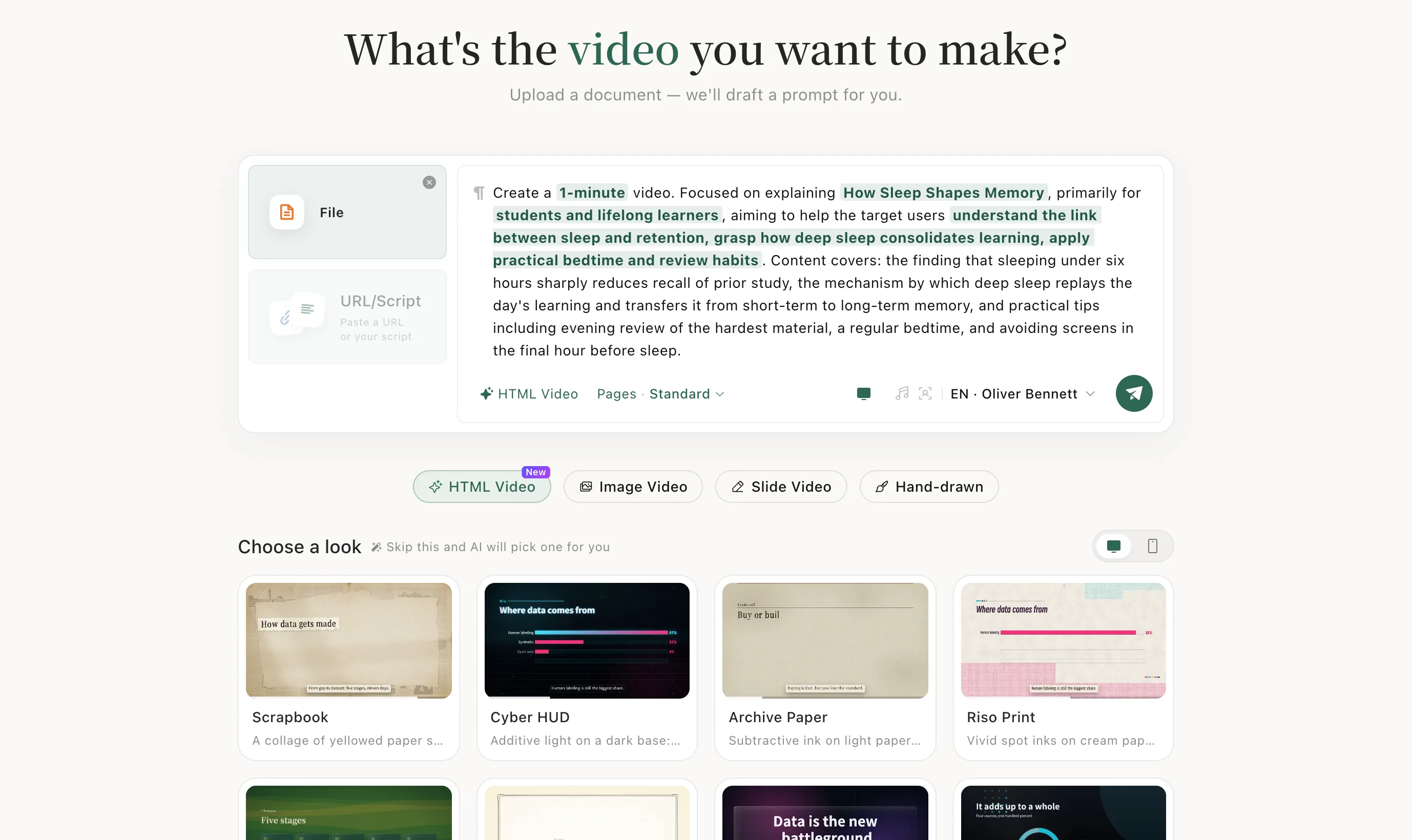
Step 3: Pick a video type and a look
Below the box, choose HTML Video, Image Video, Slide Video or Hand-drawn. Then pick a card under Choose a look, or skip it and the AI picks one for you.
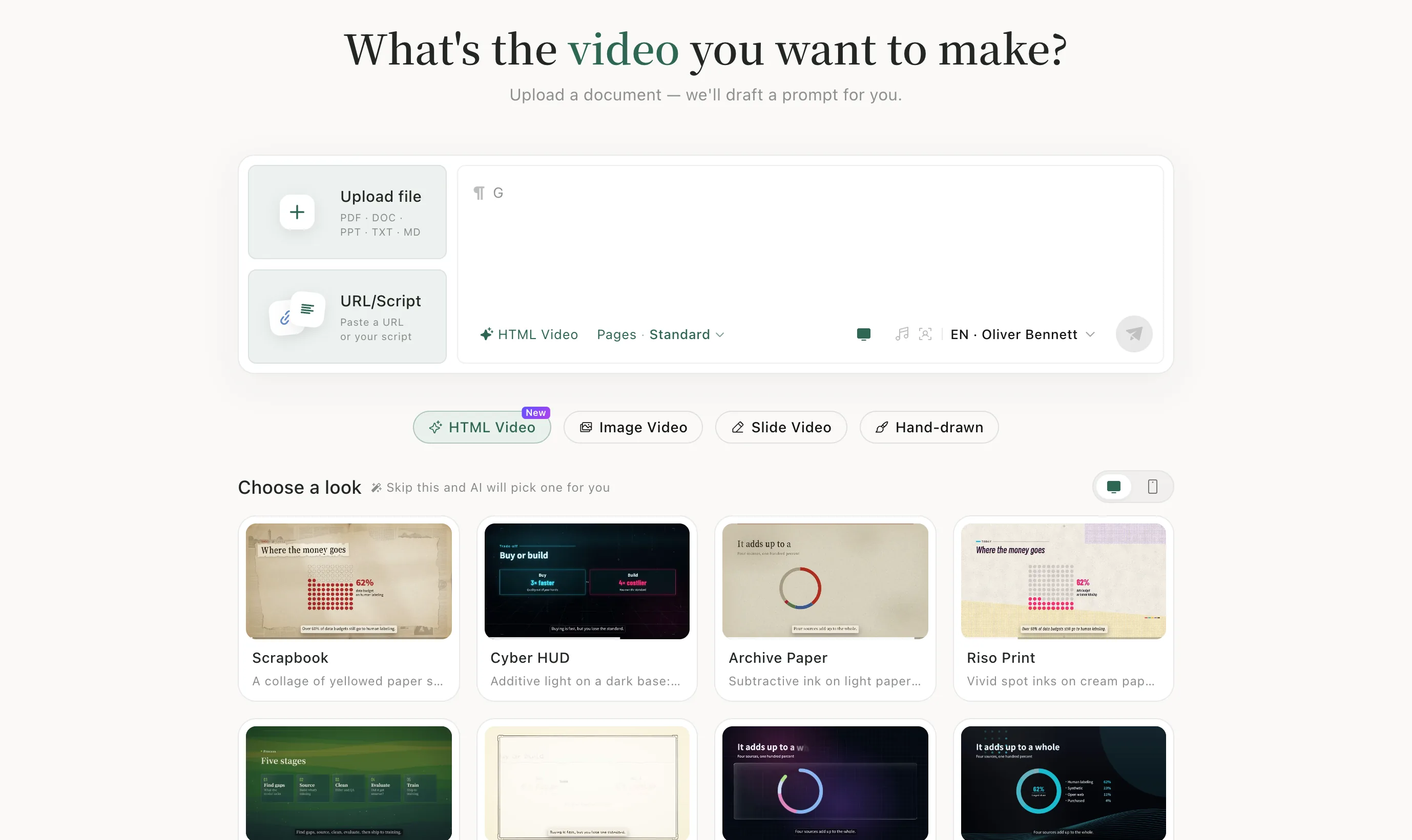
Step 4: Send
Check the voice in the bottom right, then click the green send button.
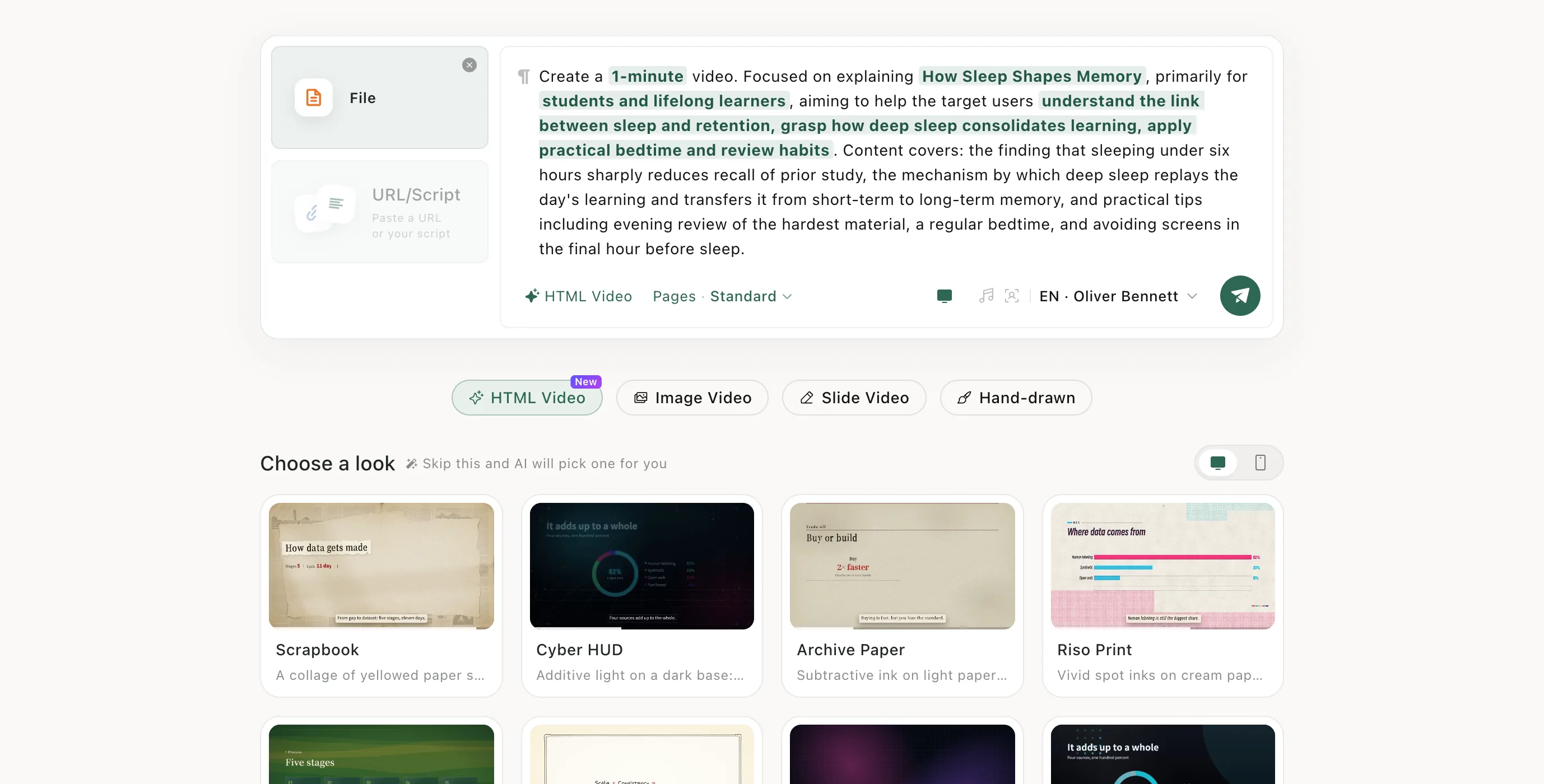
Step 5: Follow the progress
You land on the task page. The panel on the left ticks off each stage — Getting started, Refining the script, Designing the visual style and so on — until it says Video preview is ready.
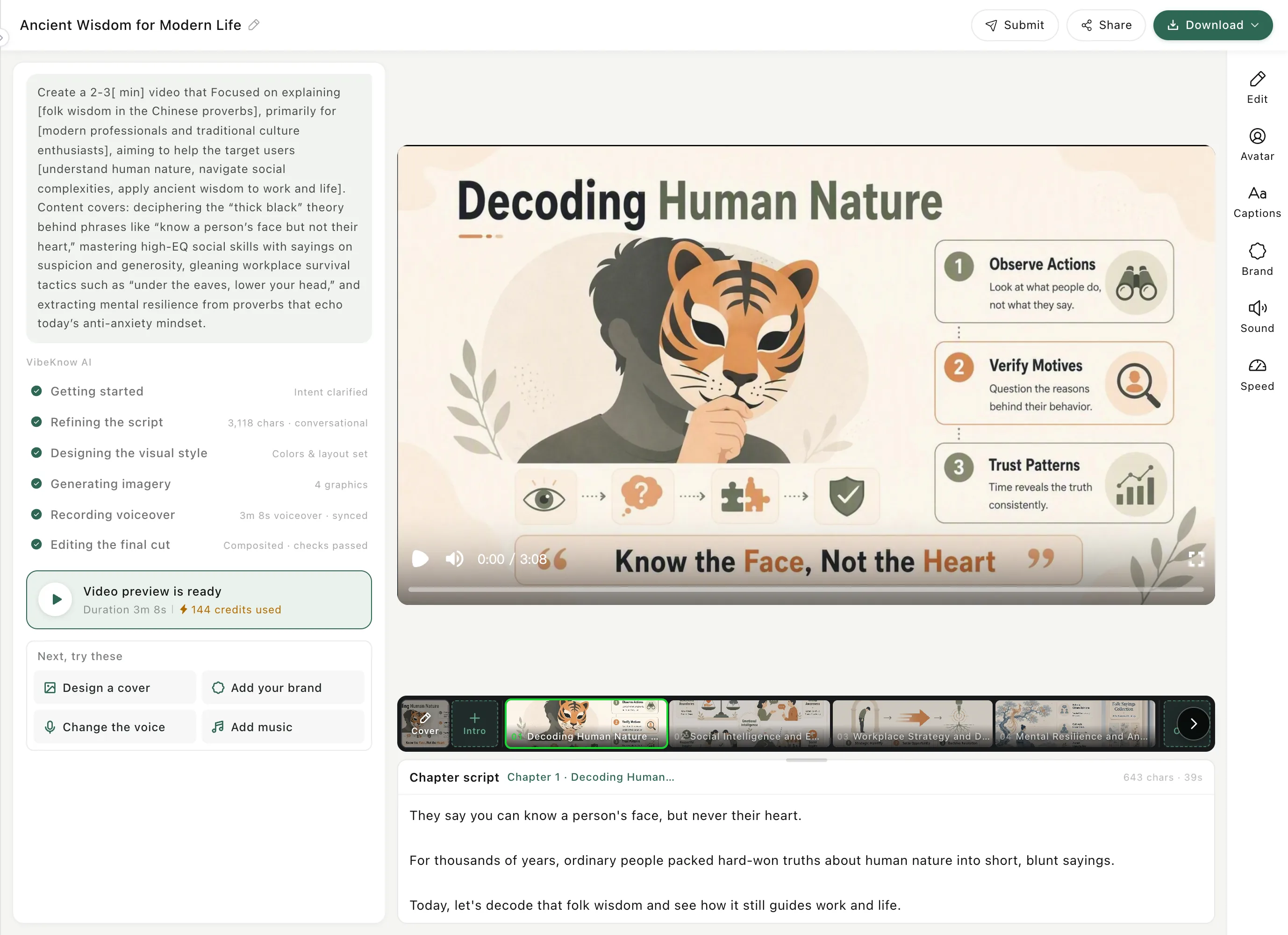
Step 6: Change what you want
Use the column on the right to adjust the video: Edit for the current page, plus Avatar, Captions, Brand, Sound and Speed. Changes preview right away; click Save to keep them.
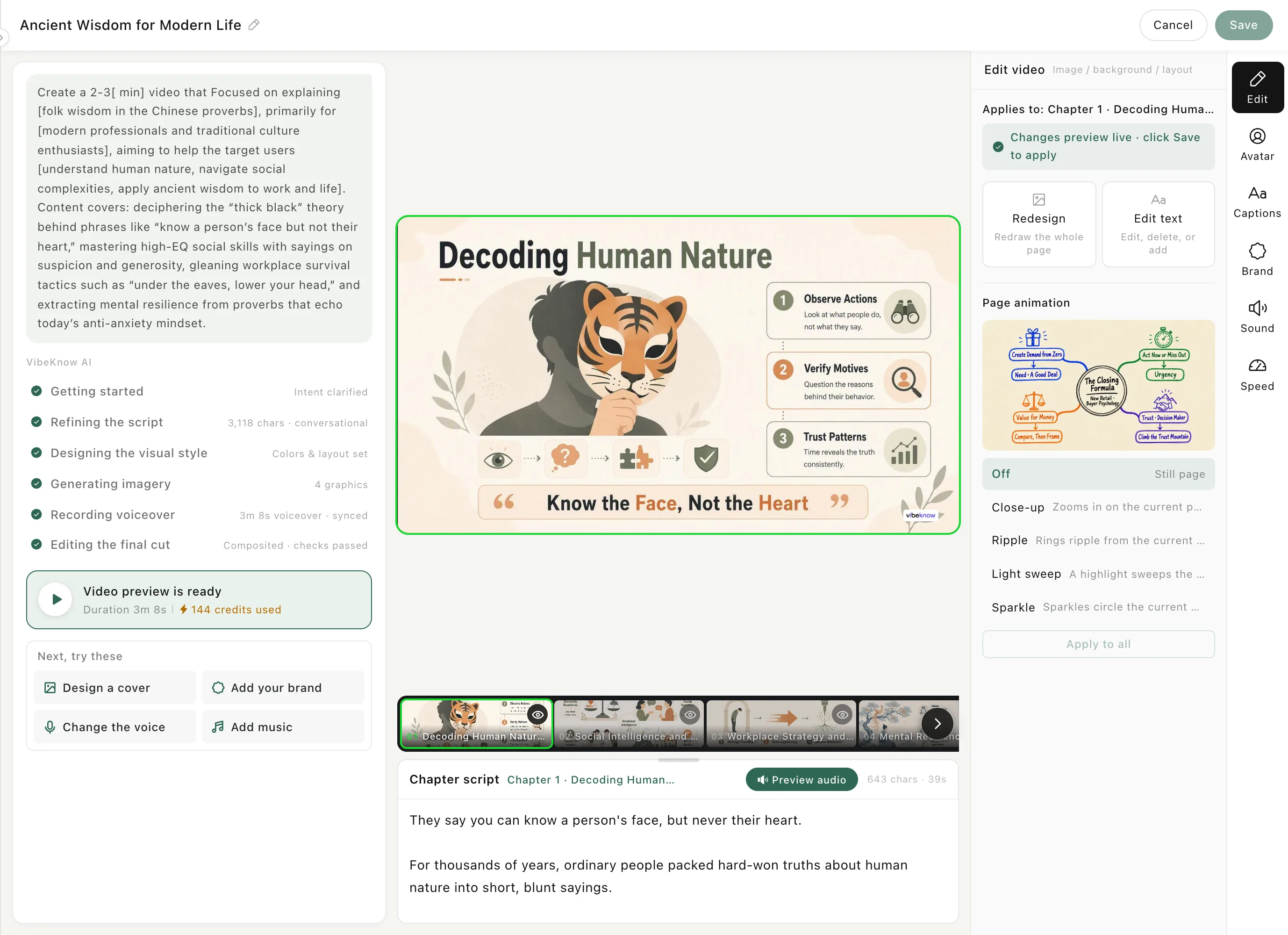
Step 7: Download
Open Download at the top right. Download video gives you the MP4. You can also export the script, voiceover, captions and images, or download all assets as a ZIP.
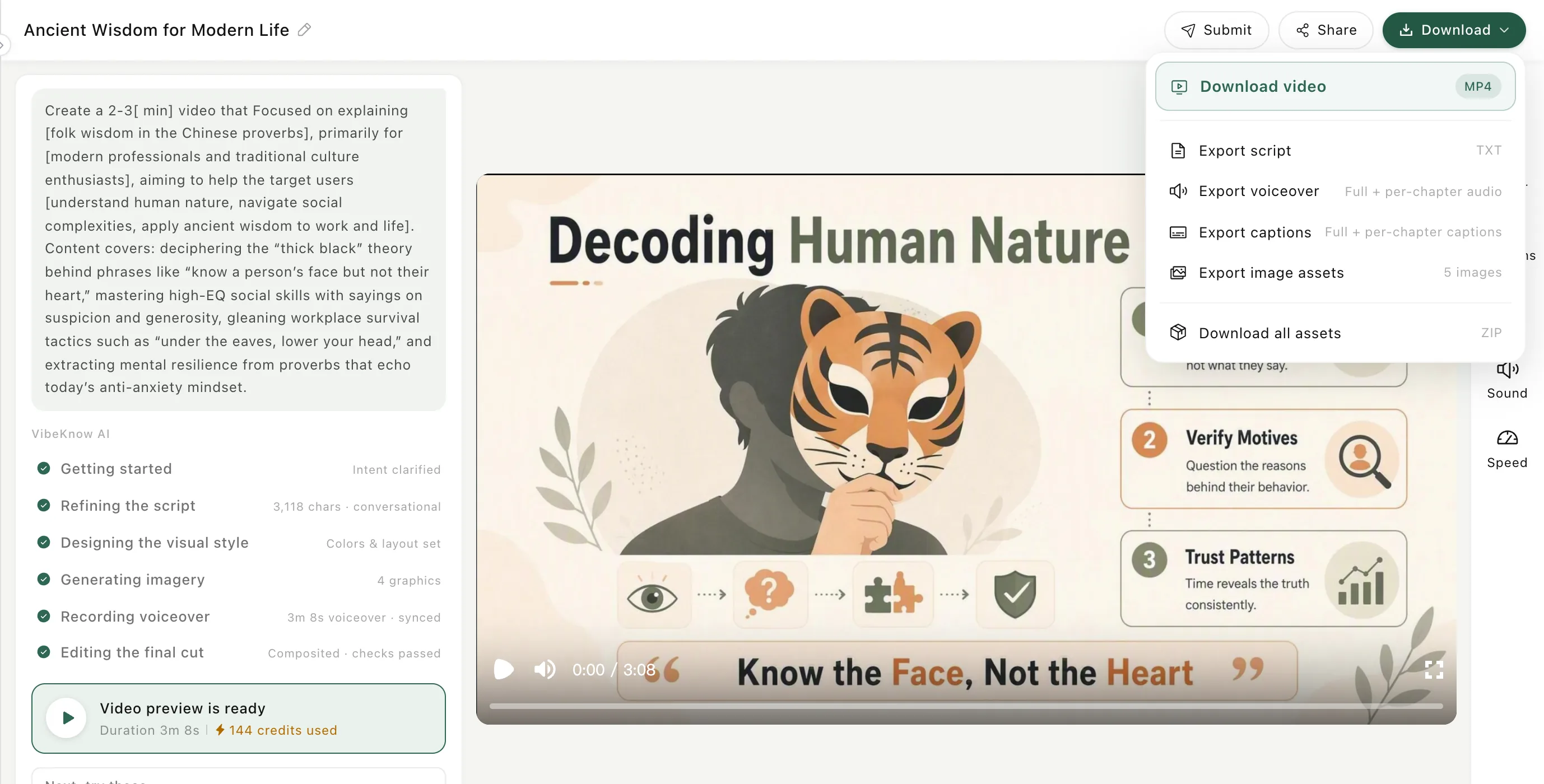
After it's made
Every video you make stays in My Works, so you can come back and edit it later. Edit and download covers this in more detail.
Good to know
- Not sure which video type to pick? Each one has its own guide under Video types — start with the description that sounds like your material.
- Free-plan exports carry a watermark; paid plans remove it. See Pricing.